


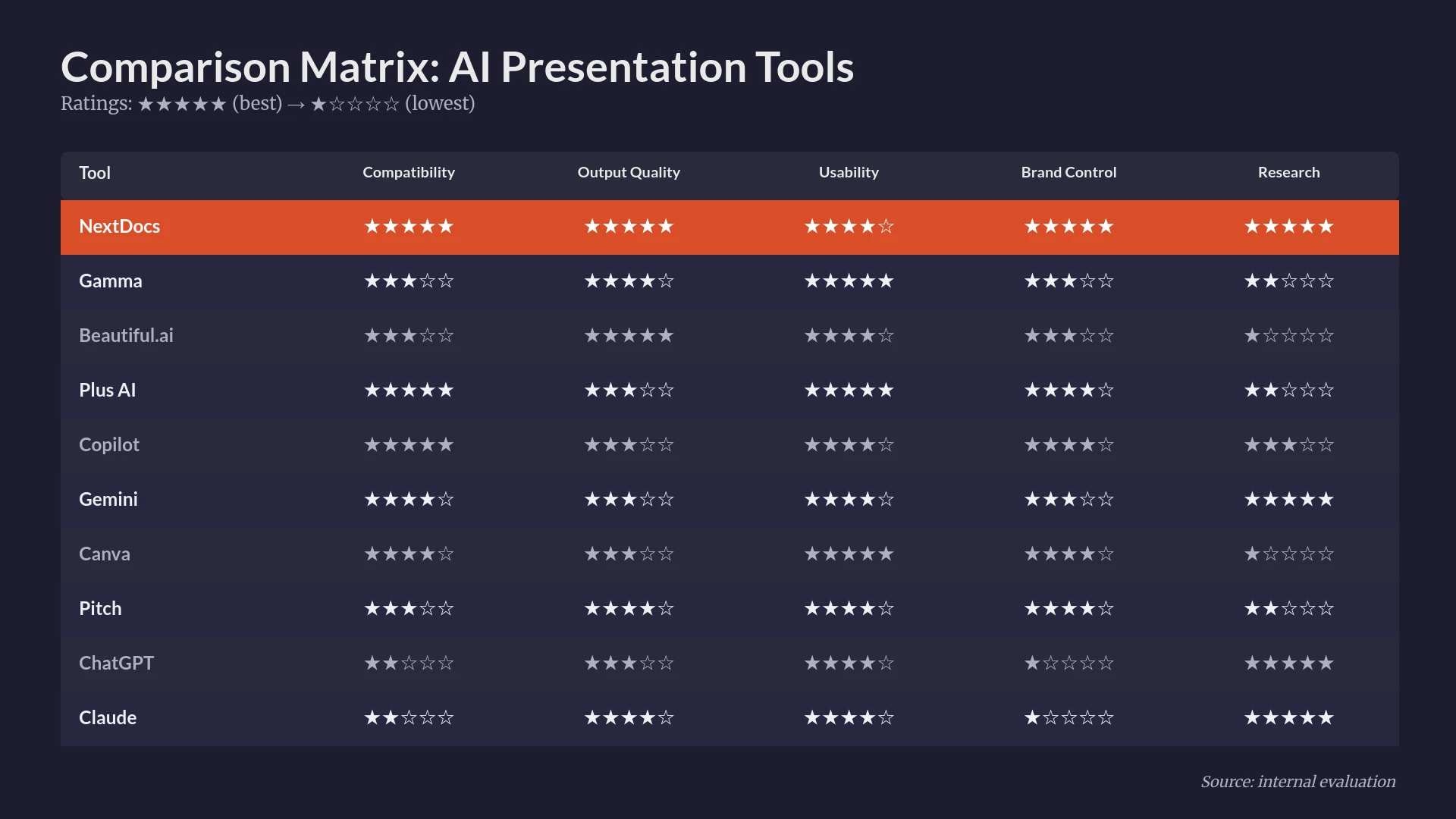
AI presentation tools have transformed how professionals create decks, but which ones actually deliver on their promises?
Creating presentations used to mean hours of wrestling with slide layouts, hunting for the right icons, and endlessly tweaking bullet points until your eyes glazed over. Then AI presentation builders arrived, promising to turn a simple prompt into a polished deck in minutes. The marketing made it sound like magic: describe what you need, and watch as professional slides materialize before your eyes.
The reality? Some tools deliver on that promise beautifully. Many don't come close.
We spent weeks testing 15 AI presentation makers, from PowerPoint add-ins to standalone platforms to general-purpose chatbots repurposed for slide creation, using the same benchmark prompt and rigorous evaluation criteria. We created pitch decks for fictional startups, sales presentations for enterprise software, internal reports for quarterly reviews, and training materials for onboarding programs. We pushed each tool to its limits to see which ones actually help professionals work faster without sacrificing the quality that matters when you're presenting to investors, clients, or your board.
This comprehensive guide covers everything you need to choose the right AI presentation builder for your specific work: quick picks for those who want immediate answers, detailed reviews for those who want to understand the nuances, comparison tables for easy reference, and a decision framework to match tools to your particular needs and workflow.
Whether you're a consultant who creates client-facing decks weekly, a founder preparing for your Series A pitch, a sales professional building proposals and case studies, or a marketer creating campaign presentations, this guide will help you find the tool that actually makes your work better, not just different.
The Best AI Presentation Builders at a Glance
| Best For | Tool | Why It Wins |
|---|---|---|
| Best Overall | NextDocs | Multi-variant generation gives you real choices instead of one take-it-or-leave-it output; universal exports to PDF, PPTX, Google Slides, and Docs from a single source; deep research integration pulls real data with citations; strong brand consistency controls |
| Best PowerPoint Add-in | Plus AI | Native integration feels like a natural extension of PowerPoint/Slides; preserves existing workflows and templates; works with existing presentations, not just new ones |
| Best for Google Workspace | Gemini for Google Slides | Seamless Workspace integration; can reference content from your Drive; included with Workspace subscription; familiar interface requires no learning curve |
| Best Free Option | Gamma | Genuinely generous free tier with meaningful functionality; web-native presentations with clean, modern default designs; fast generation with decent quality |
| Best for Design Quality | Beautiful.ai | Smart templates automatically adjust as you add content; consistently beautiful output that's hard to make ugly; ideal for non-designers who need polished results |
| Best for Teams | Pitch.com | Excellent real-time collaboration with version history and commenting; professional template library; good balance of AI assistance and manual control |
| Best for Quick Social Slides | Canva Magic Design | Enormous template variety; multi-format export to presentations, videos, and social posts; strong free tier with access to massive asset library |
| Best Chatbot for Outlining | Claude | Excellent at creating detailed outlines with speaker notes; strong reasoning about narrative flow and audience adaptation; can iterate on structure based on feedback |
| Best for Research-Heavy Decks | NextDocs | Built-in deep research pulls actual figures with citations instead of plausible-sounding statistics; eliminates the research-then-create two-step workflow |
How We Tested These Tools
Our Benchmark Prompt
To ensure fair comparison across all 15 tools, we used the same carefully crafted prompt that tests multiple capabilities simultaneously:
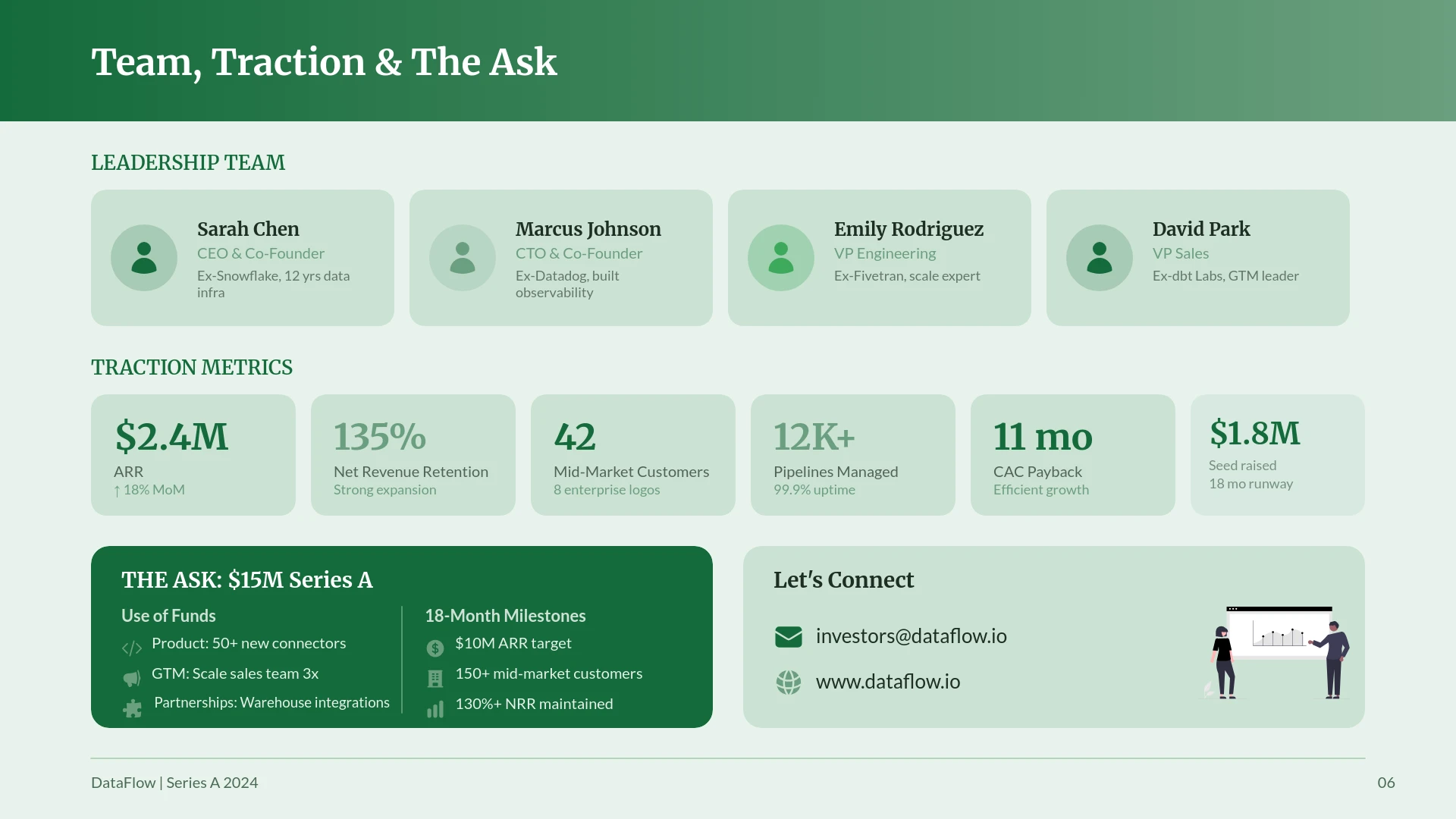
"Create a 10-slide pitch deck for a B2B SaaS startup called 'DataFlow' that helps mid-market companies automate their data pipelines. Include: problem statement, solution overview, market size, business model, competitive landscape, team slide, traction/metrics, and ask. Target audience: Series A investors."
This prompt tests several critical capabilities: understanding business context and jargon, structuring a compelling narrative arc that builds toward the ask, handling data visualization for market size and metrics, producing investor-ready quality that wouldn't embarrass you in a real pitch meeting, and managing the specific conventions of startup pitch decks.
We also tested each tool with secondary prompts for sales presentations, internal reports, and training materials to understand how well they adapt to different use cases.
Evaluation Criteria
We scored each tool on six dimensions, weighted by importance for professional use:
-
Compatibility & Workflow Fit (20%) - Does it work with your existing tools? Can you export to PowerPoint, Google Slides, PDF? Does it integrate with your current workflow or require you to change how you work?
-
Output Quality (25%) - Are the slides investor-ready out of the box? Do they require significant editing before you'd show them to anyone important? Is the content accurate, well-structured, and professionally written?
-
Design & Layout Variety (15%) - Does it offer diverse layouts that match different content types, or does every deck look the same regardless of topic? Can it handle data visualization, comparison slides, and image-heavy content?
-
Usability (15%) - How quickly can you go from prompt to finished deck? Is the learning curve reasonable for busy professionals? Are the controls intuitive?
-
Choice & Variants (15%) - Does it give you options to choose from, or one result you have to accept? Can you iterate easily? How much control do you have over the direction?
-
Brand Control (10%) - Can you apply your company's colors, fonts, and logo consistently? Does it support brand kits? Can you create templates that maintain consistency across multiple presentations?
Best for PowerPoint & Google Slides Users
If you live in Microsoft 365 or Google Workspace and want AI assistance without fundamentally changing your workflow, these tools integrate directly into your existing applications. You get AI capabilities without abandoning the software you already know.
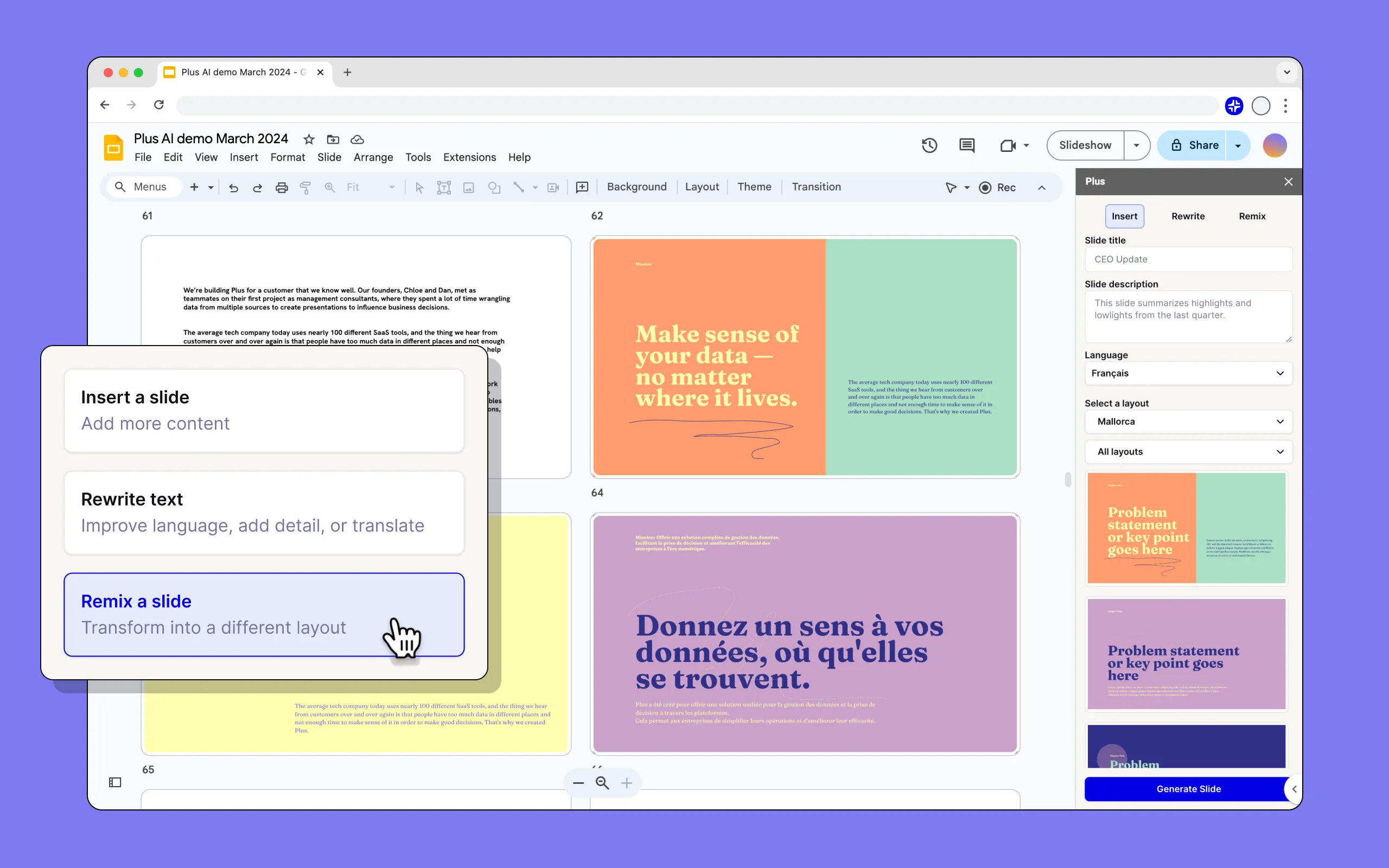
Plus AI - Best PowerPoint & Google Slides Add-in
What it is: Plus AI works as a native add-in for both PowerPoint and Google Slides, meaning you never leave your familiar environment. You install it once, and AI assistance becomes available directly in your toolbar. You can generate entire presentations from prompts, enhance existing slides with AI-powered suggestions, or use it to rewrite and improve content you've already created.
Why it wins: The integration feels like a natural extension of PowerPoint and Google Slides rather than a separate tool you have to learn. For professionals who have years of muscle memory in these applications, who know exactly where every button is and have their own templates perfected, Plus AI adds AI capabilities without disrupting any of that.
Key Features:
- Generate complete presentations from text prompts within your existing app
- Enhance or rewrite existing slides without starting over
- Maintains your existing templates and master slides
- Works with your organization's existing brand assets
- Real-time collaboration works exactly as expected
Strengths:
- Integration feels seamless, it's just another tool in your toolbar
- Can work with existing presentations, not just new ones from scratch
- Preserves your existing templates, master slides, and brand formatting
- Real-time collaboration continues to work as expected
- Learning curve is minimal if you already know PowerPoint or Slides
Limitations:
- No free option to try the tool before committing
- Output quality varies significantly based on how specific your prompt is
- Limited design variety compared to standalone tools built from the ground up for AI
- Requires a subscription on top of your existing Microsoft 365 or Workspace license
- Some advanced features require higher-tier plans
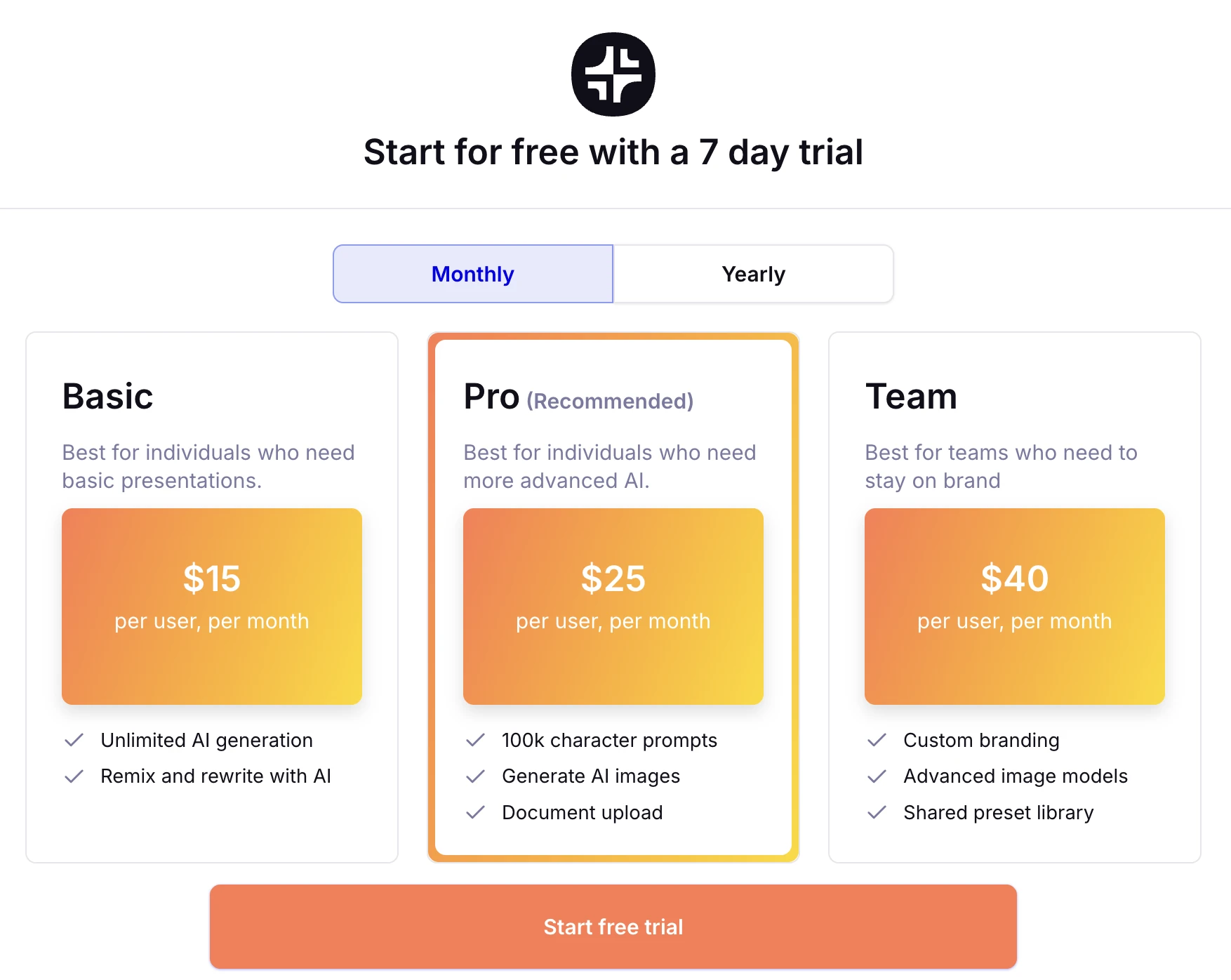
Pricing: Starts around $10/month for individual plans; team plans available at higher tiers.
Use case tip: Plus AI is ideal if you already have a library of PowerPoint or Google Slides templates and want to speed up content creation without changing your workflow. It's particularly useful for enhancing existing presentations rather than creating from scratch.
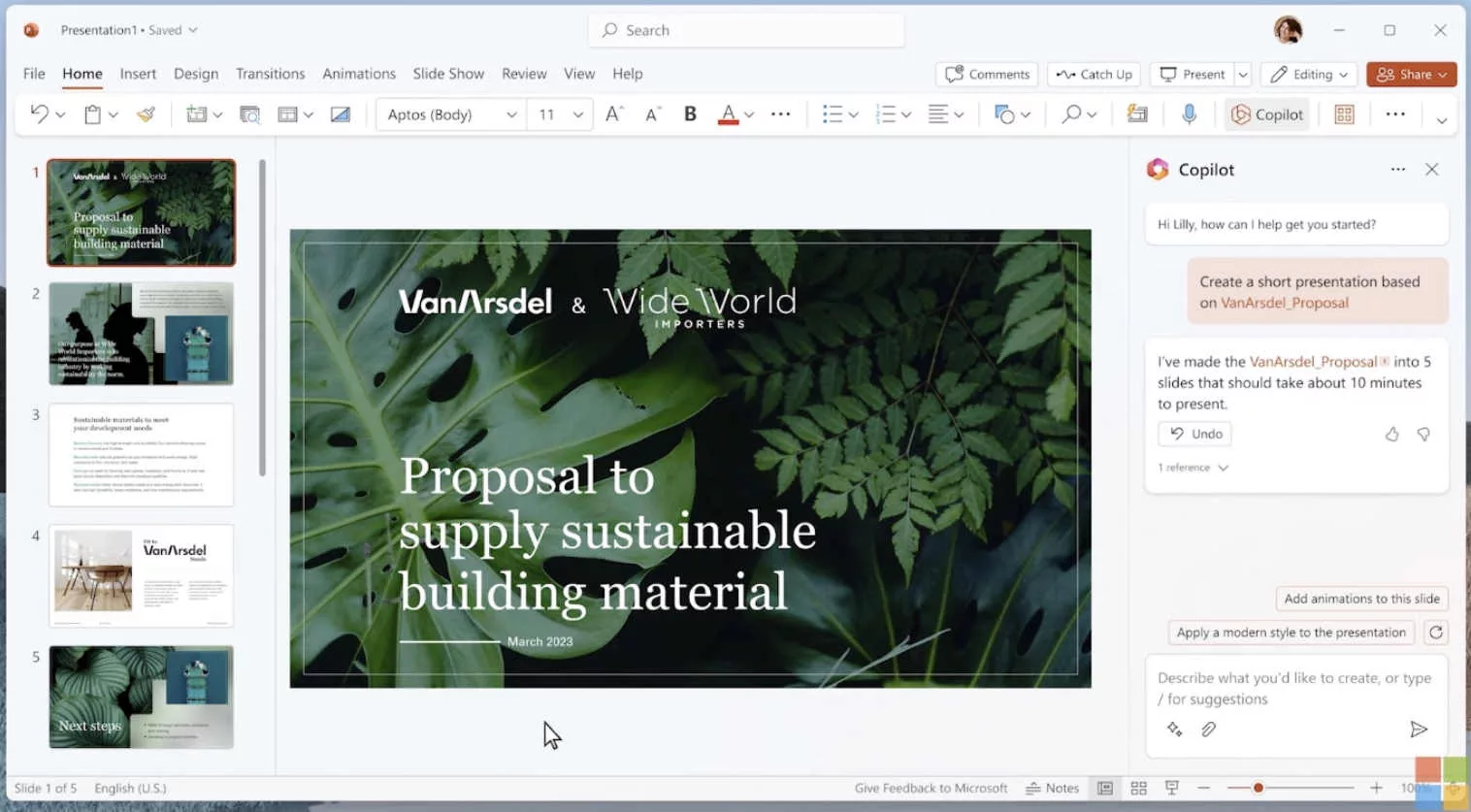
Copilot for PowerPoint - Best for Microsoft 365 Enterprise
What it is: Microsoft's Copilot integrates deeply with PowerPoint as part of the broader Microsoft 365 Copilot experience. It leverages your organization's data, documents in SharePoint, conversations in Teams, emails in Outlook, to create contextually relevant presentations that understand your company's specific context.
Why it wins: For enterprise users already invested in the Microsoft ecosystem, Copilot offers capabilities no standalone tool can match. It can pull content from a Word document you wrote last month, reference data from an Excel spreadsheet, and understand the context of a project based on your Teams conversations. This organizational awareness is genuinely powerful for internal presentations.
Key Features:
- Create presentations from Word documents, Excel data, or text prompts
- Pull content from across your Microsoft 365 tenant
- Generate speaker notes that anticipate questions
- Summarize and restructure existing presentations
- Enterprise-grade security and compliance built in
Strengths:
- Can pull content from Word documents, Teams chats, SharePoint, and other Microsoft 365 data
- Enterprise-grade security and compliance that IT departments actually approve
- Understands organizational context when connected to your tenant
- Speaker notes generation is particularly strong and thoughtful
- Integrates with the Microsoft 365 apps you already use daily
Limitations:
- Requires Microsoft 365 Copilot license, which is expensive for small teams
- Design output is conservative, functional and professional but rarely visually impressive
- Limited control over visual style and layout choices
- Best features require enterprise deployment with proper configuration
- Not available for personal Microsoft 365 subscriptions
Pricing: $30/user/month as part of Microsoft 365 Copilot, which requires an existing Microsoft 365 business subscription.
Use case tip: Copilot for PowerPoint shines when you need to create presentations from existing organizational content. If you have a detailed Word document or report, Copilot can transform it into a presentation while maintaining accuracy. It's less useful for creative presentations or when you're starting from scratch.
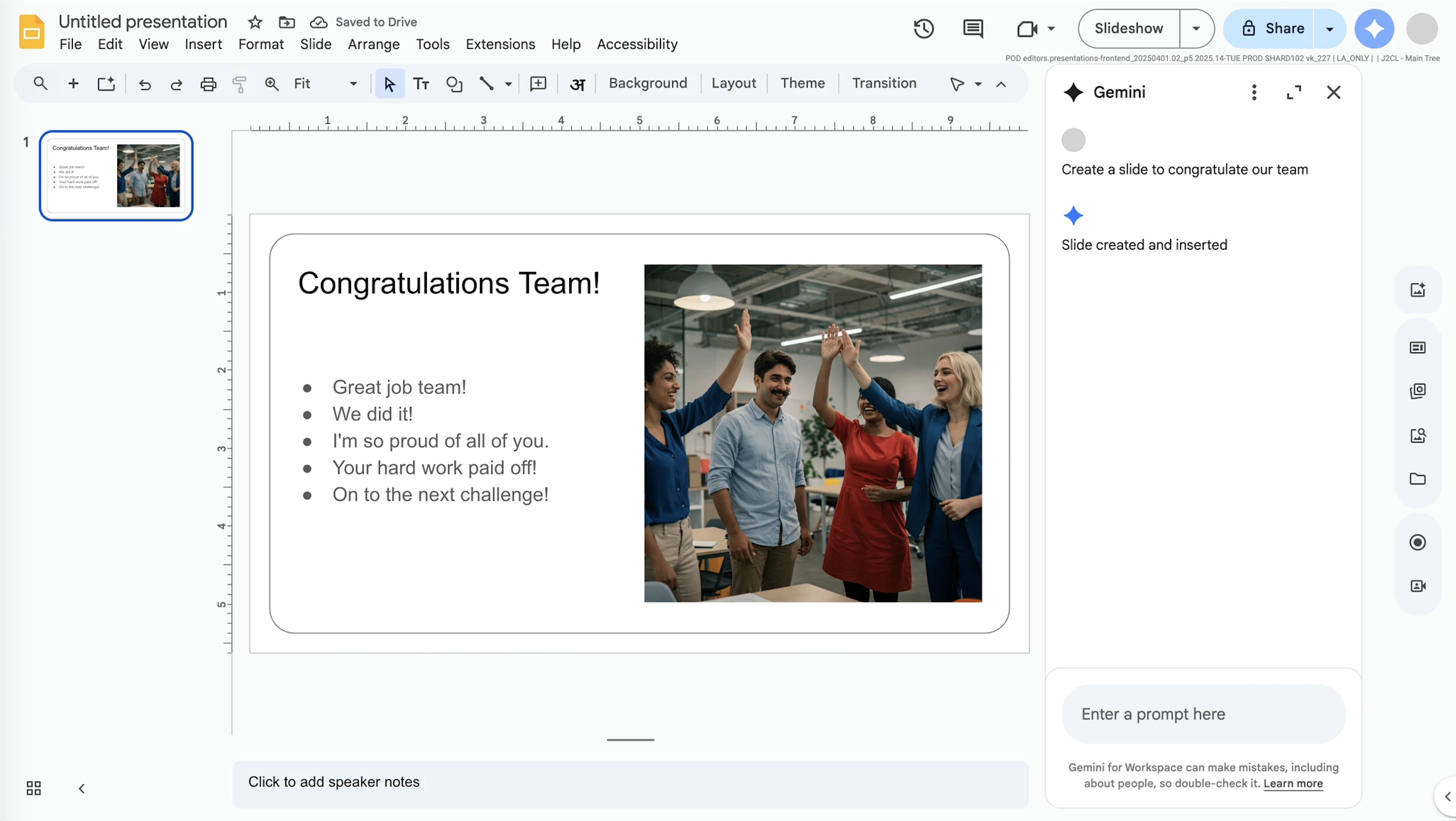
Gemini for Google Slides - Best for Google Workspace Users
What it is: Google's Gemini integration brings AI assistance directly into Google Slides as part of the Workspace experience. It can generate presentations, create images, and help with content, all within the familiar Slides interface you already know.
Why it wins: For organizations committed to Google Workspace, Gemini offers AI capabilities without requiring additional tools or subscriptions. It understands your Drive content, can reference documents you've created, and works within the collaboration model that makes Google Workspace popular.
Key Features:
- Generate presentations from prompts within Google Slides
- Create images using Gemini's image generation capabilities
- Reference content from your Google Drive
- Collaborate in real-time with AI assistance available to all editors
- Included with Google Workspace subscriptions (with usage limits)
Strengths:
- Native Google Workspace integration feels seamless
- Can reference content from your Drive and other Workspace apps
- Free for Workspace subscribers (with usage limits on AI features)
- Image generation is built in and reasonably capable
- No additional software to install or manage
Limitations:
- Output quality is inconsistent, sometimes genuinely impressive, often generic
- Limited template variety compared to dedicated presentation tools
- Less sophisticated than standalone AI presentation tools built specifically for this purpose
- Image generation can feel disconnected from slide content and overall theme
- Advanced features may require Gemini Advanced subscription
Pricing: Included with Google Workspace subscriptions for basic features; Gemini Advanced features may require additional subscription.
Use case tip: Gemini for Google Slides is best for quick drafts and internal presentations where you're already working in Google Workspace. For high-stakes external presentations, you may want to generate a draft here and then refine it with more specialized tools.
Best for Non-Traditional Slide Formats
Not every presentation needs to be a PowerPoint file that you email as an attachment. These tools create web-native presentations, interactive documents, or formats optimized for specific use cases where traditional slides fall short.
NextDocs - Best Overall AI Presentation Builder
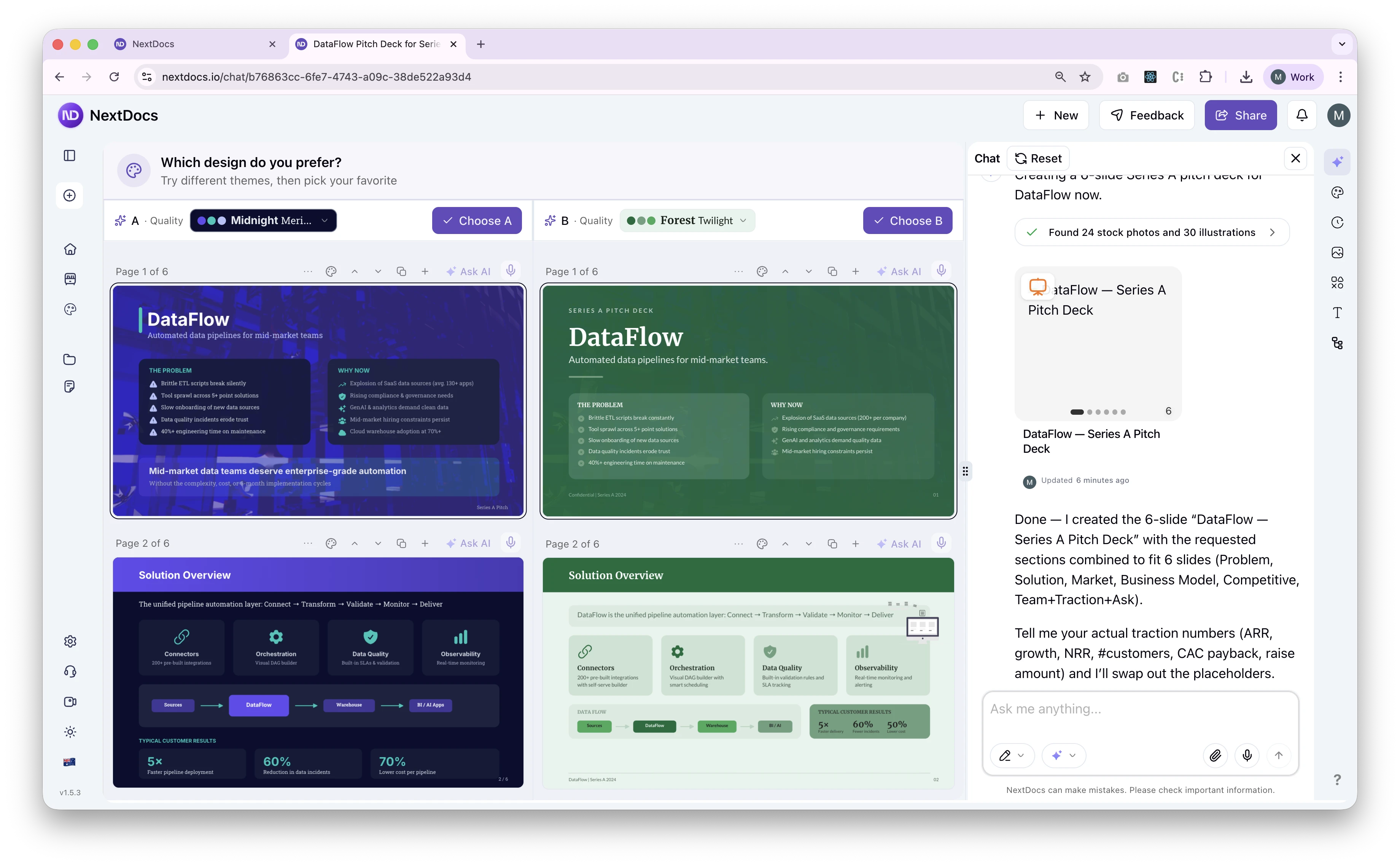
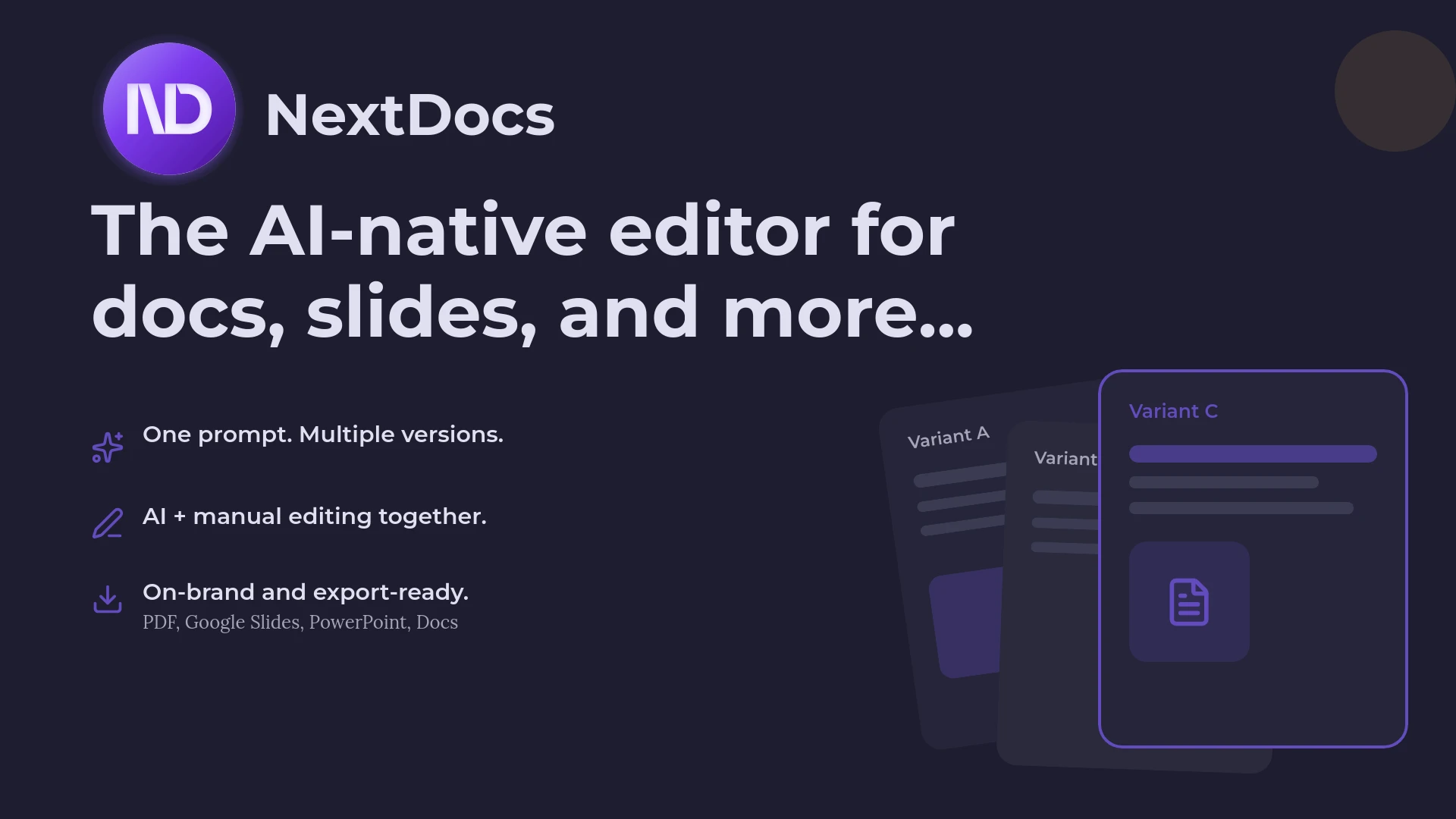
What it is: NextDocs takes a fundamentally different approach to AI presentation building. Instead of generating one result and hoping you like it, NextDocs creates multiple versions from each prompt, giving you genuine choices rather than a single take-it-or-leave-it output. It's built from the ground up as an AI-native document and presentation platform, not a traditional tool with AI bolted on.
Why it wins: The multi-variant generation isn't just a marketing gimmick. In our testing, we found that having 3-4 different interpretations of the same prompt dramatically reduced editing time and improved final quality. One version might nail the structure but miss the tone; another might have the perfect opening but weak middle slides; a third might take a completely different angle that sparks new ideas. Being able to cherry-pick the best elements, or simply choose the version closest to your vision, is genuinely useful in ways that single-output tools can't match.
The universal export capability solves a real pain point: you create once and can deliver in whatever format your audience needs. Investors want a PDF? Done. Client wants to edit in PowerPoint? Done. Team prefers Google Slides? Done. You're not locked into one format or forced to recreate your work.
Key Features:
- Multi-variant generation creates multiple versions per prompt
- Universal export to PDF, PowerPoint, Google Slides, and Google Docs
- Deep research integration pulls real data with citations
- AI-assisted editing or full manual control, your choice
- Brand kit support for consistent styling across all outputs
- Multi-model support lets you choose the AI that works best for your content
Strengths:
- Truly AI-native architecture - AI isn't an add-on; it's built natively to control the canvas and understand presentation structure
- Multi-variant generation - Get multiple versions per prompt, then choose the best or combine elements from different versions
- Universal export - PDF, PowerPoint, Google Slides, and Google Docs from the same source without reformatting
- Deep research integration - Built-in research pulls real data and citations for content-heavy decks, eliminating the research-then-create two-step
- Edit flexibility - AI-assisted editing or full manual control; you're never locked into accepting what the AI generates
- Brand consistency - Apply your brand kit across all outputs with consistent colors, fonts, and styling
- Multi-model support - Choose the AI model that works best for your specific content type and needs
Limitations:
- Learning curve for advanced features (though basic use is straightforward)
- Best results require thoughtful prompting (true of all AI tools, but the multi-variant approach helps)
- Some export formats may require minor formatting adjustments depending on complexity
Pricing: Free tier available with meaningful functionality; Pro plans start around $15/month with additional features and higher limits.
Use case tip: NextDocs is particularly powerful for research-heavy presentations where you need real data. Instead of generating plausible-sounding statistics that you then have to verify (and often find are wrong), NextDocs pulls actual figures with citations, saving the research-then-create two-step that slows down most presentation workflows.
Example Output Outline:
Gamma - Best Free Option
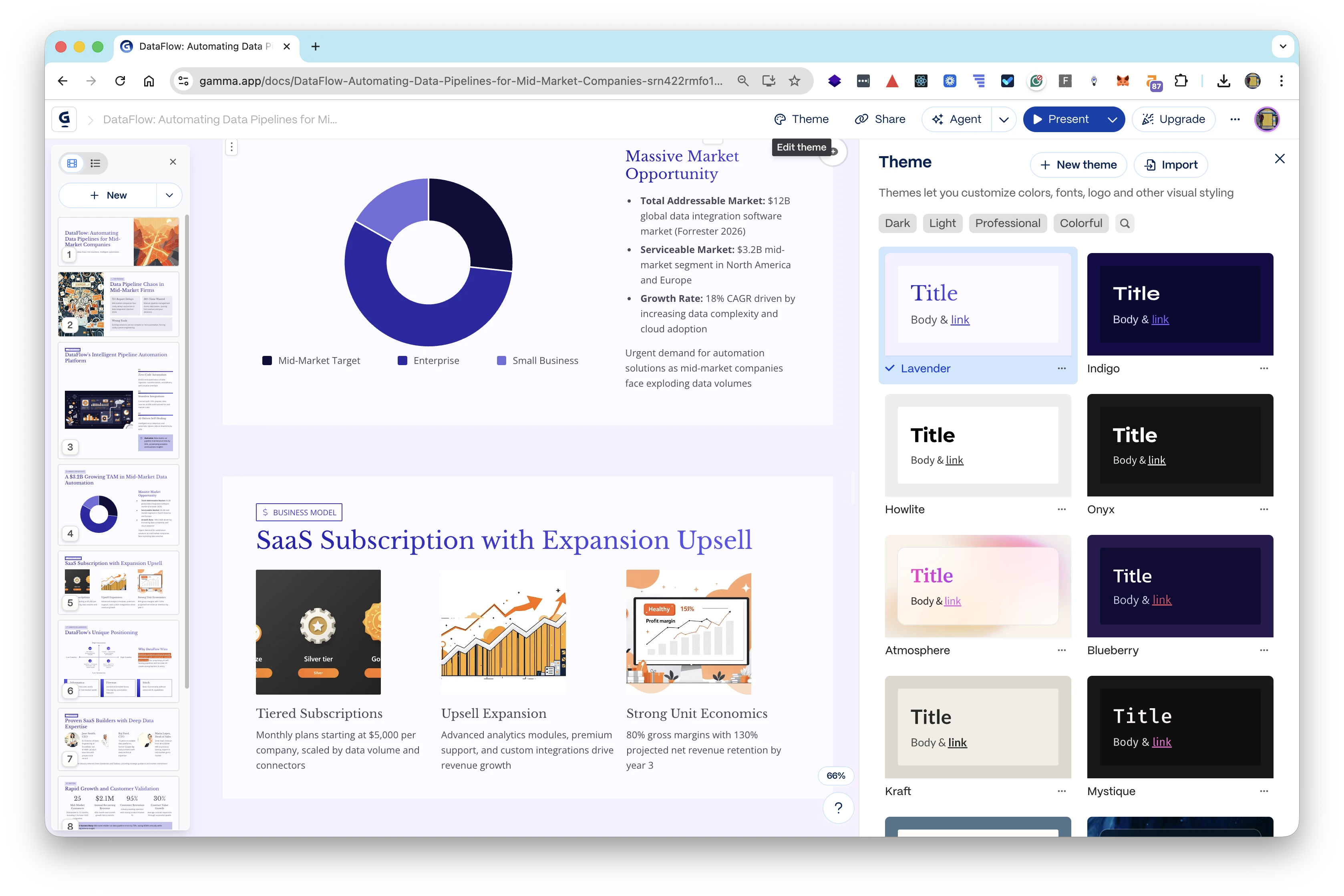
What it is: Gamma creates web-native presentations that live online and can be shared via link. Rather than traditional slides, Gamma produces interactive "cards" that scroll vertically and can include embedded content, videos, and dynamic elements. The free tier is genuinely generous, making it an excellent starting point for individuals and small teams who want to explore AI presentation building without financial commitment.
Why it wins: Gamma's free tier offers meaningful functionality, not a crippled trial designed to frustrate you into paying. You can create real presentations, share them, and get a genuine sense of whether the tool works for you. The web-native format is also genuinely innovative for certain use cases, particularly internal communications and content that will be consumed on screens rather than projected.
Key Features:
- Web-native presentations that live online and can be shared via link
- Interactive cards with embedded content, videos, and dynamic elements
- AI generation from prompts, documents, or outlines
- Collaboration features for team editing
- Export to PDF and PowerPoint (with limitations on free tier)
Strengths:
- Genuinely generous free tier with meaningful functionality
- Web-native format is great for sharing, embedding, and screen-based consumption
- Clean, modern default designs that look professional without effort
- Fast generation with decent quality for most use cases
- Good for internal presentations and content that doesn't need traditional slide format
Limitations:
- Free tier exports include a watermark
- Export to PowerPoint and PDF is limited on free tier
- Less control over fine design details than traditional tools
- Web-native format doesn't work for all use cases, investor meetings often need PPTX files
- Brand customization options are relatively basic
Pricing: Free tier with watermarked exports; Pro plans start around $8/month for watermark-free exports and additional features.
Use case tip: Gamma is ideal for internal presentations, team updates, and content that will be shared via link rather than presented in a meeting room. The web-native format works beautifully for these use cases. For external presentations where you need to send a file, you may find the export limitations frustrating.
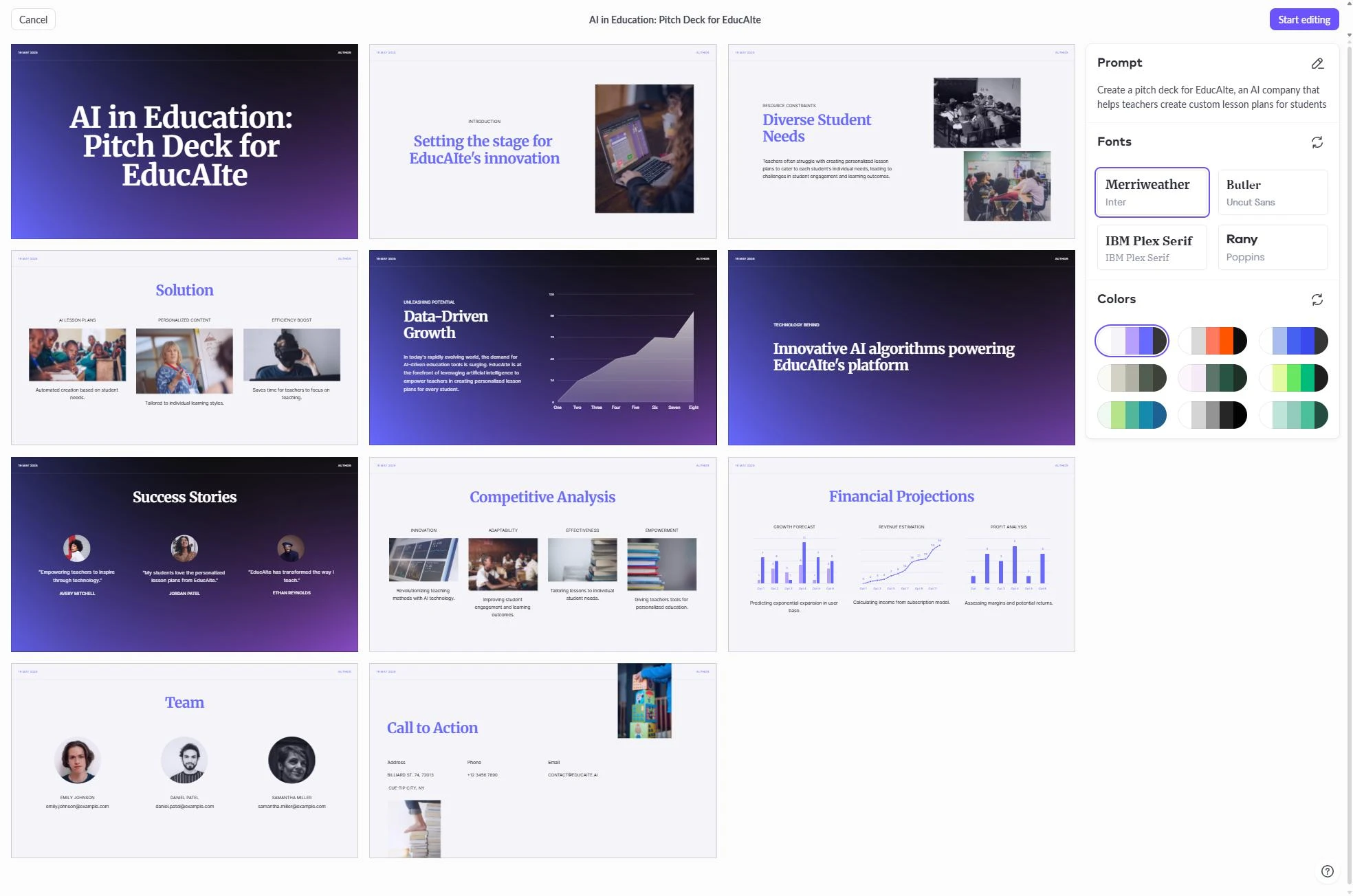
Pitch.com - Best for Teams
What it is: Pitch.com combines AI generation with robust collaboration features, creating a platform specifically designed for teams that build presentations together. It emphasizes real-time collaboration, version control, and the workflow features that matter when multiple people contribute to the same deck.

Why it wins: For teams that create presentations collaboratively, where multiple people contribute slides, review each other's work, and need to track changes, Pitch.com offers the best combination of AI assistance and collaboration features. The version history and commenting systems are genuinely useful, not afterthoughts.
Key Features:
- AI-powered presentation generation from prompts
- Real-time collaboration with multiple simultaneous editors
- Version history with the ability to restore previous versions
- Commenting and feedback systems built in
- Professional template library with consistent styling
- Brand kit support for team consistency
Strengths:
- Excellent real-time collaboration that actually works smoothly
- Version history and commenting systems are well-designed
- Professional template library with good variety
- Good balance of AI assistance and manual control
- Team management features for larger organizations
Limitations:
- AI features are less advanced than dedicated AI-first tools
- Export options can be finicky, especially for complex slides
- Pricing scales with team size, which can get expensive
- Learning curve for team features
Pricing: Free tier for individuals; Pro plans start around $8/user/month for teams with additional collaboration features.
Use case tip: Pitch.com is ideal for teams that create presentations collaboratively and need proper version control and commenting. If you're a solo creator, the collaboration features won't add much value, and you might prefer a tool with stronger AI capabilities.
Best for Simple Designs & Image-First Presentations
Sometimes you need quick, visually-driven slides rather than content-heavy decks. These tools excel at producing attractive outputs quickly, with less emphasis on complex content and more on visual impact.
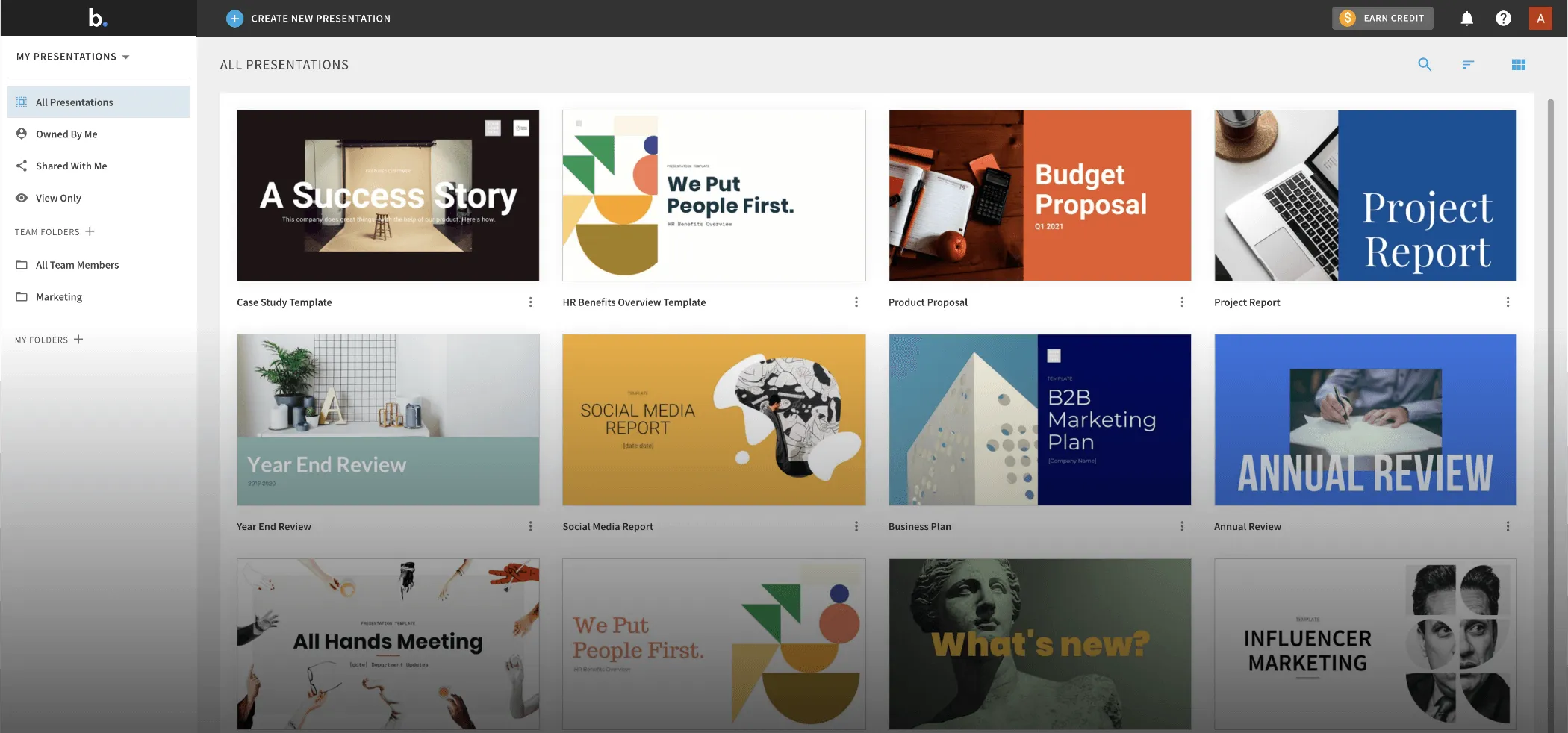
Beautiful.ai - Best for Design Quality
What it is: Beautiful.ai focuses on making every slide look professionally designed, with smart templates that automatically adjust as you add content. The tool is built around the idea that good design should be automatic, you focus on content, and Beautiful.ai handles the visual presentation.
Why it wins: Beautiful.ai produces consistently polished output that's genuinely hard to make ugly. The smart templates adapt intelligently as you add or remove content, maintaining visual balance and professional appearance. For non-designers who need designer-quality results, it's remarkably effective.
Key Features:
- Smart templates that automatically adjust to content
- AI-powered slide generation from prompts
- Consistent design system that maintains visual coherence
- Animation and transition library with professional quality
- Brand kit support for company colors and fonts
Strengths:
- Consistently beautiful output, it's genuinely hard to create ugly slides
- Smart templates adapt intelligently to content changes
- Excellent for non-designers who need polished results
- Animation and transition quality is high and professional
- Good variety of slide types and layouts
Limitations:
- Less flexibility for custom layouts, the smart templates can feel restrictive
- AI generation capabilities are more limited than competitors focused on AI
- Can feel constraining if you have specific design requirements
- Pricing is higher than alternatives with similar features
- Export options are more limited than some competitors
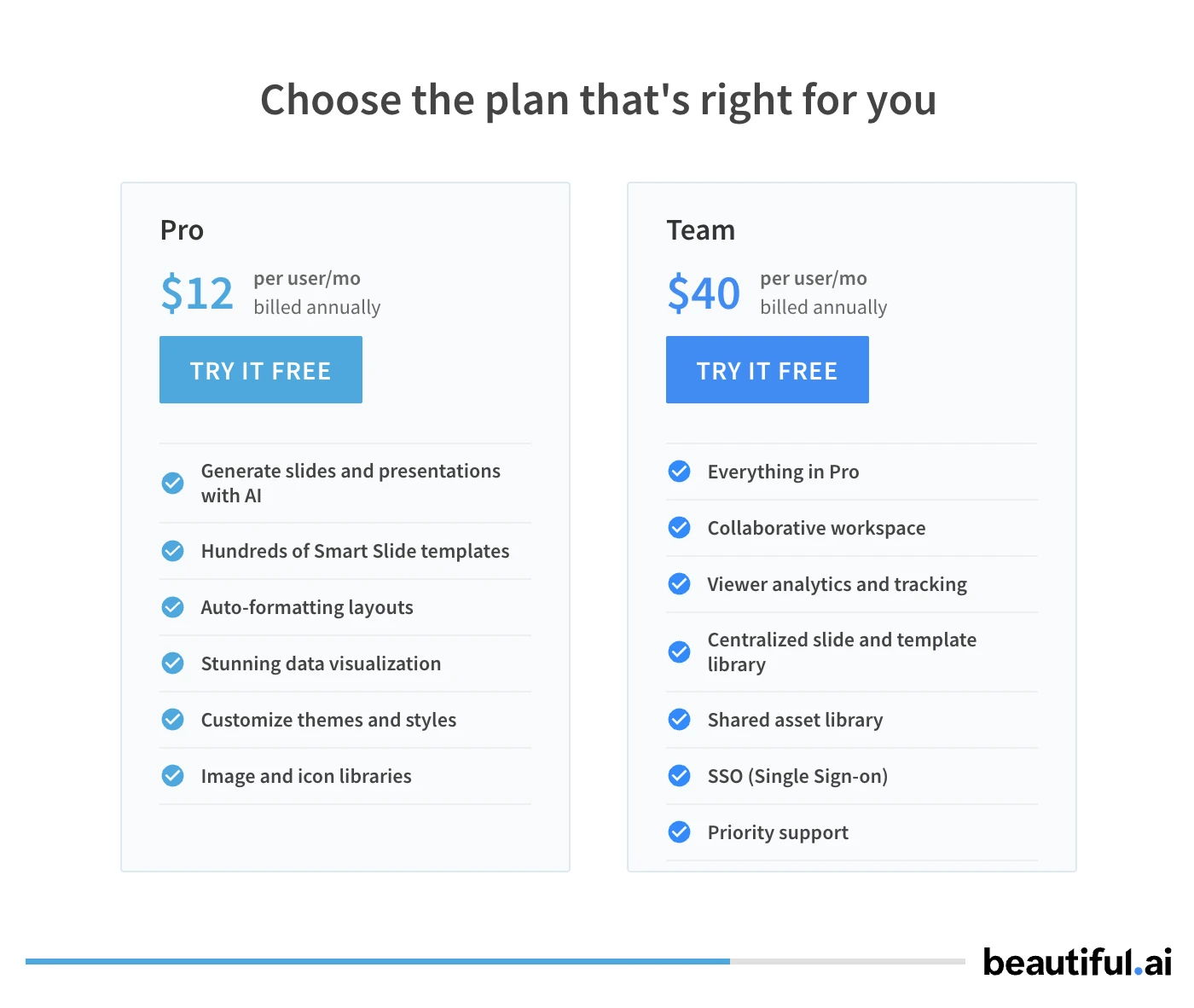
Pricing: Pro plans start around $12/month; team plans available at higher tiers.
Use case tip: Beautiful.ai is perfect when you need polished presentations quickly and don't have strong opinions about specific design elements. It's less ideal if you have precise design requirements or need layouts that don't fit its template system.
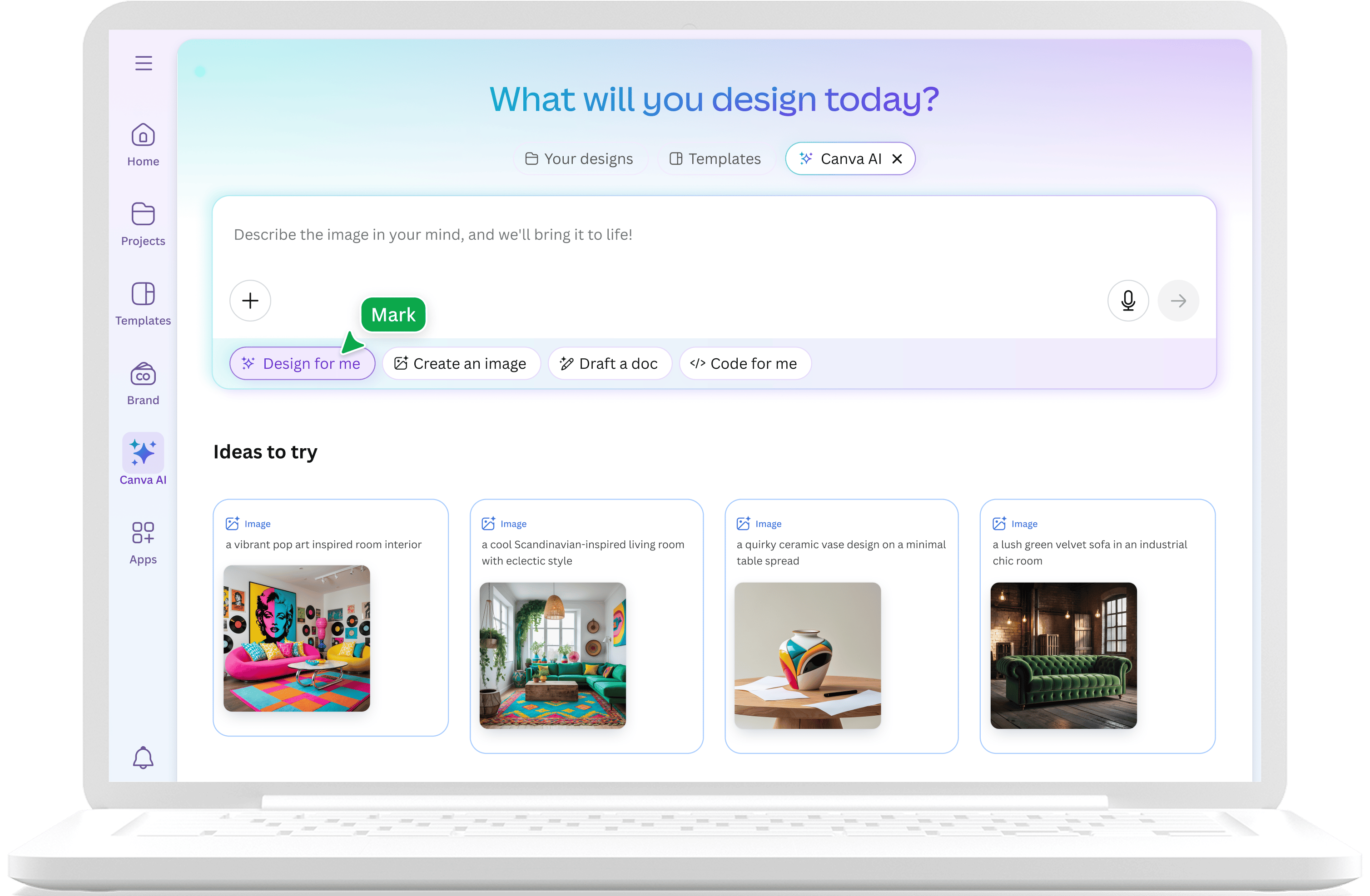
Canva Magic Design - Best for Quick Social Slides
What it is: Canva's Magic Design AI helps create presentations quickly, with access to Canva's massive template and asset library. It's part of the broader Canva ecosystem, which means you can create presentations alongside social media graphics, videos, and other content types.
Why it wins: Canva's enormous template variety and asset library give you options that specialized presentation tools can't match. If you need a presentation that includes social-media-style graphics, custom illustrations, or video elements, Canva's ecosystem makes this easy. The free tier is also genuinely useful.
Key Features:
- AI-powered presentation generation from prompts
- Access to Canva's massive template and asset library
- Multi-format export to presentations, videos, and social posts
- Collaboration features for team editing
- Brand kit support for consistent styling
- Integration with other Canva content types
Strengths:
- Enormous template variety, more options than any competitor
- Excellent for social media-style presentations and visual content
- Strong free tier with meaningful functionality
- Multi-format export lets you repurpose content easily
- Familiar interface if you already use Canva
Limitations:
- AI generation quality is inconsistent, sometimes great, sometimes generic
- Professional/corporate presentations can look too "designed" or casual
- Collaboration features lag behind Pitch and dedicated team tools
- PowerPoint export sometimes loses formatting or requires cleanup
- Can be overwhelming due to the sheer number of options
Pricing: Free tier with watermarks and limitations; Pro plans start around $13/month with full access to premium assets and features.
Use case tip: Canva Magic Design is ideal for visual presentations, social media content, and situations where you want access to a huge library of templates and assets. It's less ideal for formal corporate presentations or investor decks where a more conservative aesthetic is expected.
Nano Banana Pro - Image-Based Slide Generation
What it is: Nano Banana Pro and similar tools take a different approach: they generate presentation slides as images using AI image generation technology. Rather than creating editable slides with text boxes and shapes, they produce visual compositions that can then be assembled into decks.
Why it wins: For highly visual presentations where design trumps editability, mood boards, creative pitches, visual concepts, these tools can produce stunning results that traditional presentation software can't match. The visual styles available are genuinely unique.
Key Features:
- AI image generation for slide visuals
- Unique visual styles not achievable with traditional tools
- Good for creative presentations and visual concepts
- Can produce stunning one-off slides for impact moments
Strengths:
- Unique visual styles that traditional tools simply cannot create
- Excellent for creative presentations, mood boards, and visual concepts
- Can produce genuinely stunning individual slides
- Good for impact moments in otherwise traditional presentations
Limitations:
- Output is images, not editable slides, text isn't selectable or editable
- Not suitable for data-heavy or frequently-updated presentations
- Workflow is cumbersome for creating full decks
- Consistency across multiple slides can be challenging
- File sizes can be large due to image-based format
Pricing: Varies by platform; typically subscription-based with usage limits.
Use case tip: These tools work best for specific use cases: creative agency pitches, mood boards, visual concepts, or individual "hero slides" that need to make a strong visual impact. They're not practical for typical business presentations.
Best Chatbots for Planning & Slide Drafting
General-purpose AI chatbots won't create finished slides with visual layouts, but they excel at the thinking work that makes presentations effective: planning structure, drafting content, refining messaging, and anticipating audience questions. Using a chatbot for planning and a visual tool for execution often produces better results than relying on either alone.
Claude - Best for Structured Planning
What it is: Claude is Anthropic's AI assistant, known for thoughtful, well-structured responses and strong reasoning capabilities. While it can't create visual slides, it excels at the strategic thinking that makes presentations effective.
Why it wins: Claude is particularly good at breaking down complex presentations into logical structures, with detailed slide-by-slide guidance that considers narrative flow, audience needs, and persuasive structure. Its responses tend to be thorough and well-organized, making them easy to translate into actual slides.
Key Features:
- Detailed outline creation with slide-by-slide guidance
- Speaker notes that anticipate questions and objections
- Narrative flow analysis and improvement suggestions
- Audience adaptation for different contexts
- Iterative refinement based on feedback
Strengths:
- Excellent at creating detailed outlines with thoughtful speaker notes
- Strong reasoning about narrative flow and persuasive structure
- Can iterate on structure based on your feedback
- Good at adapting tone and content for different audiences
- Responses are well-organized and easy to use
Limitations:
- No visual output, text only, requiring manual transfer to presentation software
- Can be verbose; outputs often need editing for conciseness
- Doesn't understand visual design or layout considerations
- Requires you to do the visual work yourself or use another tool
Pricing: Free tier with usage limits; Pro plans start around $20/month for higher limits and priority access.
Use case tip: The ideal workflow is to use Claude to create a detailed outline with speaker notes, then use a visual tool like NextDocs to generate the actual slides based on that outline. This combines Claude's strategic thinking with visual tools' design capabilities.
ChatGPT - Best for Brainstorming
What it is: OpenAI's ChatGPT is the most widely-used AI assistant, known for fast, creative responses and broad knowledge. It's particularly good at rapid ideation and can generate multiple presentation angles quickly.
Why it wins: ChatGPT excels at brainstorming and generating alternatives. If you're not sure what angle to take with a presentation, ChatGPT can quickly generate multiple framings, helping you find the approach that resonates best.
Key Features:
- Fast brainstorming and ideation
- Multiple alternative framings for the same content
- Plugins that can extend functionality
- Wide availability and easy access
- Good for quick iterations and refinements
Strengths:
- Fast brainstorming and ideation, great for exploring options
- Good at generating alternative framings for the same content
- Plugins can extend functionality for specific use cases
- Widely accessible with generous free tier
- Responses are typically concise and actionable
Limitations:
- Slide-specific advice tends to be generic
- No native presentation generation
- Quality varies significantly based on how you prompt it
- Less thorough than Claude for detailed planning
Pricing: Free tier with usage limits; Plus plans start around $20/month for GPT-4 access and higher limits.
Use case tip: Use ChatGPT early in your process for brainstorming angles and generating ideas. Once you've settled on an approach, switch to a more specialized tool for detailed planning or visual creation.
Manus & Genspark - Research-Focused Assistants
What it is: Manus, Genspark, and similar newer AI assistants focus specifically on research and information gathering. They're designed to find, verify, and synthesize information from across the web, making them useful for presentations that need real data.
Why it wins: For presentations that require current statistics, market data, or research findings, these tools can gather and verify information more reliably than general-purpose chatbots. They're particularly useful for the research phase of content-heavy presentations.
Key Features:
- Web search and research capabilities
- Data gathering with source verification
- Summarization of research for slide content
- Fact-checking claims against sources
- Citation generation for referenced data
Strengths:
- Good at finding current statistics and market data
- Can summarize research into presentation-ready content
- Useful for fact-checking claims before including them
- Better source verification than general chatbots
- Helpful for content-heavy presentations
Limitations:
- Not designed specifically for presentation creation
- Outputs need significant reformatting for slides
- Best used alongside dedicated presentation tools
- Capabilities vary significantly between platforms
- May require subscription for full functionality
Pricing: Varies by platform; typically free tiers with premium options.
Use case tip: Use these tools for the research phase when you need real data for your presentation. Gather your statistics and findings here, then use a presentation tool to create the actual slides. This is particularly valuable for pitch decks that need credible market size data or reports that require current statistics.
Additional Tool Reviews
MagicSlides
What it is: MagicSlides is a Google Slides add-on that generates presentations from text input, YouTube videos, or existing documents. It's designed for quick drafts when you have content in another format.
Why it wins (for specific use cases): If you have a YouTube video, document, or text content that you need to turn into slides quickly, MagicSlides can automate that conversion. It's particularly useful for repurposing existing content.
Key Features:
- Generate presentations from text, YouTube videos, or documents
- Works directly within Google Slides
- Simple interface with minimal learning curve
- Quick draft generation for existing content
Strengths:
- Can convert YouTube videos to slides, useful for training content
- Works within Google Slides without switching tools
- Simple interface that's easy to learn
- Good for quick first drafts from existing content
Limitations:
- Output quality is basic and often needs significant editing
- Limited design options and visual variety
- Slides frequently need substantial rework before use
- Better for internal drafts than external presentations
Pricing: Free tier with limitations; Pro plans start around $8/month.
Use case tip: MagicSlides is best for creating quick first drafts from existing content, particularly useful for converting training videos or documents into slide format. Expect to spend time editing the output.
SlidesAI
What it is: Another Google Slides add-on focused on speed and simplicity, SlidesAI generates presentations from text prompts with minimal configuration required.
Why it wins (for specific use cases): When you need a quick draft and don't want to learn a complex tool, SlidesAI delivers fast results with minimal friction. It's good for internal presentations where speed matters more than polish.
Key Features:
- Fast generation from text prompts
- Works within Google Slides
- Simple interface with few options to configure
- Affordable pricing
Strengths:
- Fast generation, you can have slides in minutes
- Easy to use with minimal learning curve
- Affordable compared to more sophisticated tools
- Good for internal presentations and quick drafts
Limitations:
- Design quality is inconsistent and often generic
- Limited customization options
- Better for internal presentations than external ones
- Output frequently needs editing before sharing
Pricing: Free tier with limitations; Pro plans start around $10/month.
Use case tip: SlidesAI is useful when you need slides quickly and don't have high design standards, internal team updates, quick drafts for review, or presentations that will be heavily edited anyway.
Decision Guide: Which Tool Should You Pick?
Who This Guide Is For
This comparison is designed for professionals who create presentations regularly and want to work faster without sacrificing quality:
- Consultants who create client-facing decks weekly and need to maintain professional standards while improving efficiency
- Founders pitching to investors or presenting to boards, where every slide matters and credibility is essential
- Sales professionals building proposals, case studies, and competitive analyses that need to persuade and inform
- Marketers creating campaign presentations, reports, and content that represents their brand
- Anyone who makes presentations frequently and wants to work faster without accepting lower quality
How to Choose Based on Your Needs
Choose NextDocs if:
- You need to export to multiple formats (PowerPoint, Google Slides, PDF) without recreating your work
- You want multiple versions to choose from, not one fixed output you have to accept
- Your presentations require research and real data with citations
- Brand consistency matters and you need reliable styling across outputs
- You want flexibility to edit with AI assistance or manually, your choice at any point
- You're tired of AI tools that generate plausible-sounding but unverifiable statistics
Choose Plus AI or Copilot if:
- You're deeply committed to Microsoft 365 or Google Workspace and don't want to change your workflow
- You want AI assistance without learning a new tool or interface
- Your organization already pays for these tools and you want to maximize that investment
- You primarily need to enhance existing presentations rather than create from scratch
- Enterprise compliance and security requirements are non-negotiable
Choose Gamma if:
- You're budget-conscious and need a strong free option to start
- Web-native presentations work for your use case (sharing via link rather than file)
- You prioritize speed over export flexibility
- You're creating internal presentations or content for screen-based consumption
Choose Beautiful.ai if:
- Design quality is your top priority and you want consistently polished output
- You're not a designer but need designer-quality results
- You're okay with less customization flexibility in exchange for guaranteed good design
- Your presentations follow relatively standard formats
Choose Canva Magic Design if:
- You need presentations plus other content types (social media, videos, graphics)
- Visual variety matters more than formal professional polish
- You already use Canva for other work and want to stay in one ecosystem
- You're creating presentations with a more casual or creative aesthetic
Choose Claude or ChatGPT if:
- You want to plan and outline before generating visuals
- You prefer more control over the content creation process
- You'll use another tool for final slide production
- You need help with strategic thinking about presentation structure and narrative
Choose Pitch.com if:
- You work in a team that creates presentations collaboratively
- Version control and commenting are essential to your workflow
- You need proper team management features
- Collaboration matters more than cutting-edge AI capabilities
Conclusion: Making Great Presentations with AI
AI presentation builders have reached a point where the question isn't whether to use them, but which one fits your workflow and needs. The tools we've reviewed range from simple add-ins that enhance your existing software to sophisticated platforms that reimagine how presentations get created. The "best" choice depends entirely on how you work, what you need to produce, and what trade-offs you're willing to make.
After testing 15 tools across multiple use cases, our recommendation for most professionals is NextDocs. The combination of multi-variant generation (so you're not stuck with one interpretation of your prompt), universal exports (so you can deliver in whatever format your audience needs), and genuine editing flexibility (AI-assisted or manual, your choice at any point) addresses the real pain points we hear from consultants, founders, and marketers.
The deep research integration is particularly valuable for anyone building decks that need real data. Instead of generating plausible-sounding statistics that you then have to verify (and often find are fabricated or outdated), NextDocs pulls actual figures with citations, saving the research-then-create two-step that slows down most presentation workflows. For pitch decks, market analyses, and any presentation where credibility matters, this capability alone can save hours.
That said, the right tool depends on your specific situation. If you're embedded in Microsoft 365 and don't want to change your workflow, Plus AI or Copilot make sense. If you're budget-conscious and web-native presentations work for you, Gamma's free tier is genuinely useful. If design quality is paramount and you want guaranteed polish, Beautiful.ai delivers consistently.
The key is matching the tool to your actual needs, not the most impressive feature list, but the capabilities that matter for the presentations you actually create.
Ready to Create Better Presentations?
Try NextDocs Free and experience multi-variant generation, universal exports, and deep research integration. No credit card required.
Last updated: February 2026. We regularly re-test tools as they release new features and update this guide accordingly. Have a tool we should add to this comparison? Let us know.