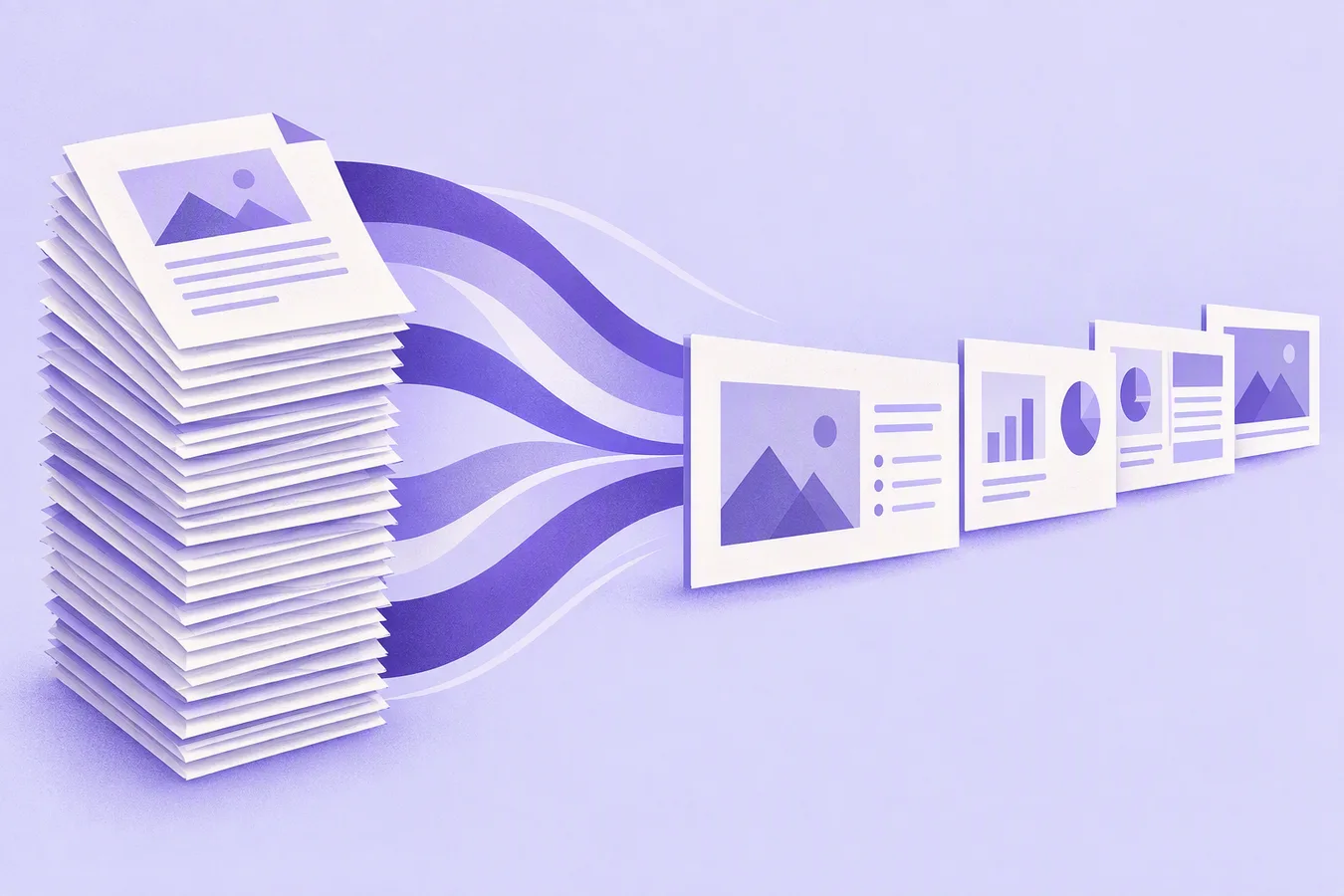
Use AI to turn notes or a rough draft into a structured report. Organize headings and tables, preserve supplied facts and review the document before exporting.
Everything you need to create professional documents
Turn Notes or a Rough Draft into a Report
Provide your source notes, existing text or report file and explain the audience and reporting period. Ask for clear sections and a useful summary. Keep missing information visible so the draft does not turn gaps into invented facts.
October revenue A$126,000; operating costs A$94,500. 1
Delivery notes
Three delayed projects: two approvals and one scheduling conflict. 2
Decision request
Up to A$3,000 of temporary support is proposed and remains unapproved. 3
References
Research
Review October report evidence
Monthly financial data
Referenced
October revenue A$126,000; operating costs A$94,500.
Delivery notes
Referenced
Three delayed projects: two approvals and one scheduling conflict.
Decision request
Referenced
Up to A$3,000 of temporary support is proposed and remains unapproved.
Information not supplied
Review
No retention data or revenue forecast was supplied.
Check each claim against its source
3 example references
Review source support
Compare Report Structures for Your Reader
Request a concise summary or a fuller section-by-section report while preserving the same evidence. Ask explicitly for another approach when you need one. Compare clarity, source coverage and reading order before choosing a draft to refine.
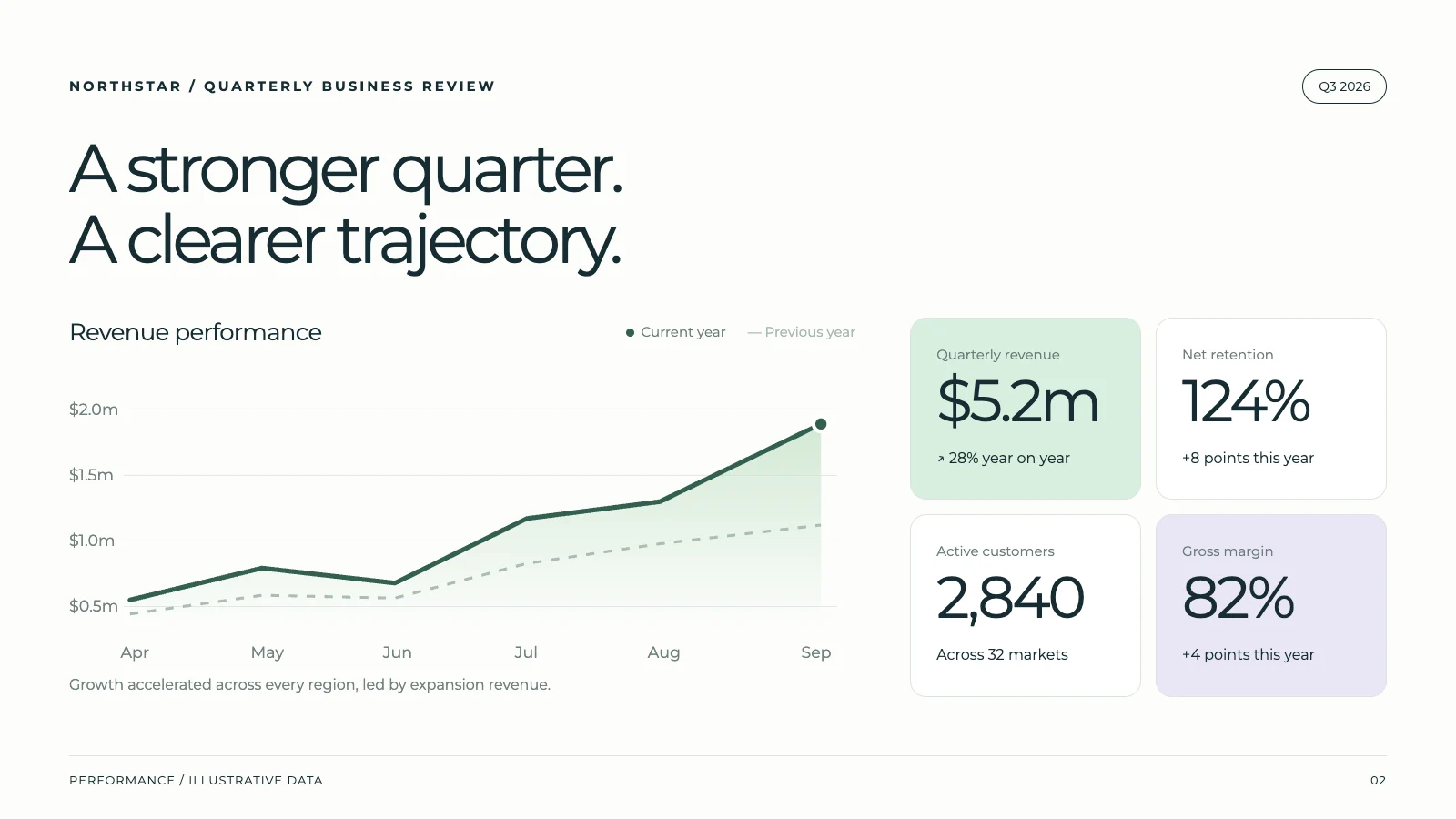
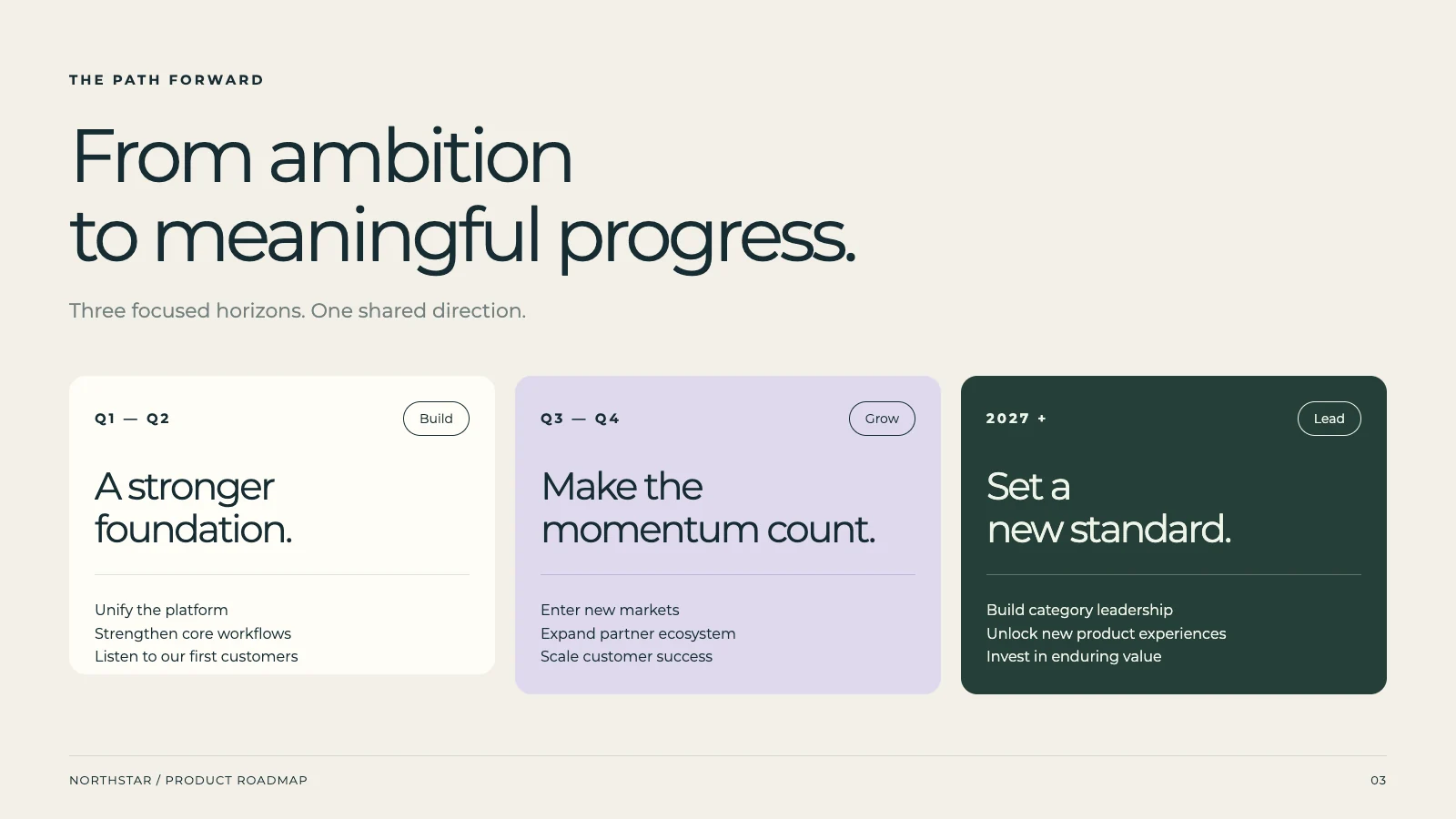
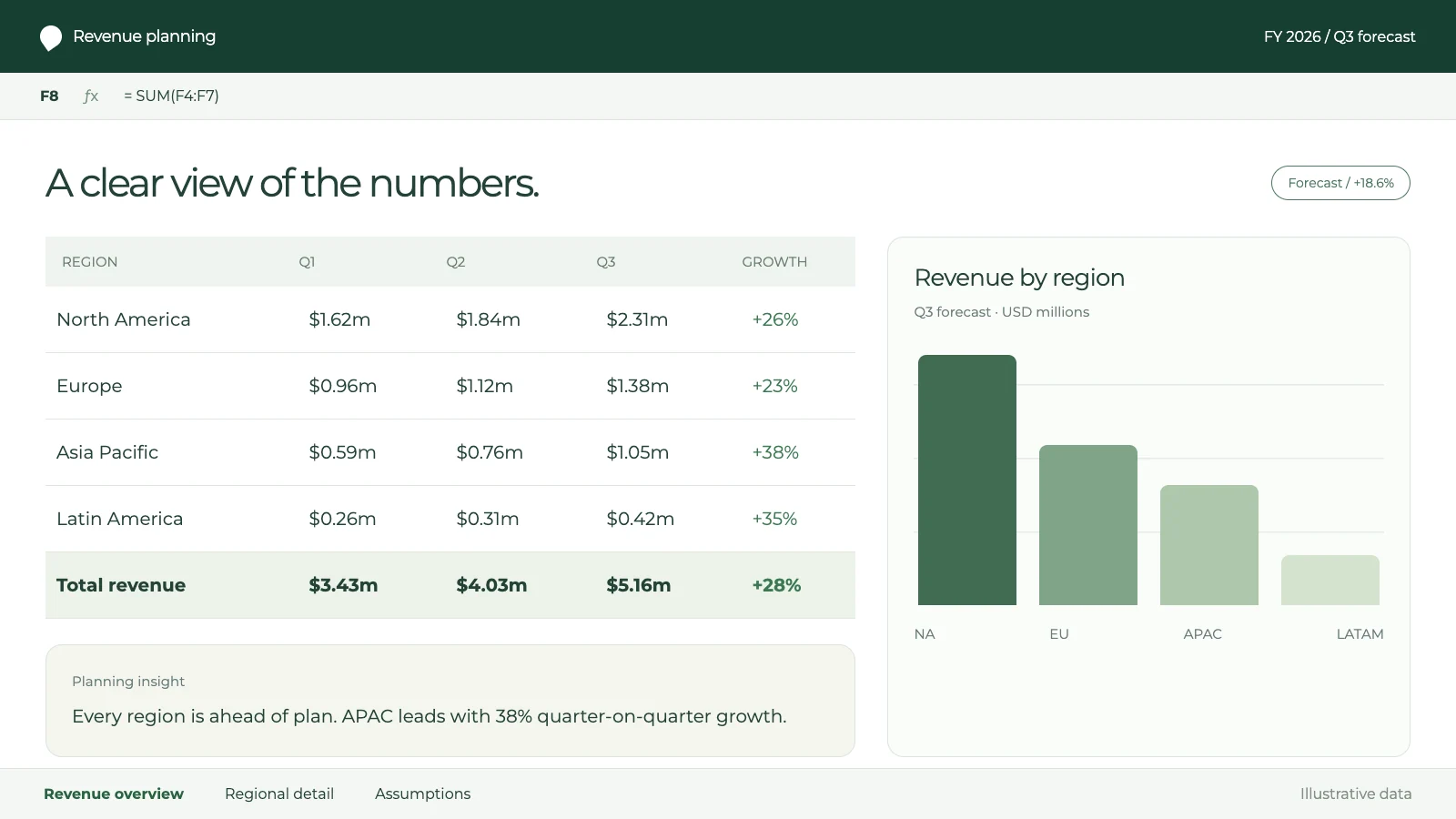
Create a quarterly business review with key metrics and team updates...
v1 — Data-Focused
v2 — Narrative
v3 — VisualSelected
v4 — Balanced
4 of 4 versions generated100%
Clean Up Formatting While Preserving Facts
Ask AI to organize headings, tables and paragraphs without changing amounts, dates, owners or approval status. Review the revised document against the original, especially where text was shortened or moved. Confirm any requested calculations independently.
Supply your preferred fonts, colors, logo and a reference document where useful. Ask for a consistent heading hierarchy and readable tables. Inspect text expansion, alignment and the final file in the language your audience will use.
Choose an available export for the way the report will be used. PDF suits viewing; Word and Google Docs allow document handoff, with layout checks after substantial edits to fixed-page output. Current Tasks PowerPoint and Google Slides exports use one image per slide. Classic and API exports differ, and format access depends on the plan.
“The presentation turned out perfectly well, which I honestly didn't expect. I thought I would atleast get a few errors but it was flawless. Thanks for creating such a beautiful app and providing such services for free. Really appreciate it.”
SM
Shubham More
University Student
“The AI editing features are a game changer. I use it daily for contracts and proposals—saves me hours of work!”
MC
Michael Carter
Startup Founder
“I’ve never seen an AI tool that combines content generation and formatting so seamlessly. It’s like having a personal assistant for all my documents.”
SL
Shauna Louise
Manufacturing Technician
“NextDocs is an invaluable tool for professionals. My team and I rely on it for creating polished proposals and NDAs in minutes.”
EJ
Ethan Johnson
Project Manager
“As a freelancer, NextDocs helps me create client-ready documents effortlessly. The templates and formatting tools are top-notch.”
MG
Maria Gomez
Graphic Designer
“From resumes to contracts, this tool does it all. I can't imagine going back to manually editing documents again!”
AP
Ashwinnie Pillai
Sales Enablement
“The one-click download feature is a lifesaver. I get perfectly formatted documents in seconds—every single time.”
Prices are in US dollars. Taxes are based on your billing location. New customer pricing. Existing subscriptions keep their current billing terms.
FAQ
Frequently asked questions
Can I use NextDocs for free?
Yes. Our free plan includes AI credits each month, so you can create and export documents right away. Upgrade anytime for higher limits and premium features like advanced AI models and image editing.
What can I create with NextDocs?
You can create presentations, pitch decks, proposals, contracts, reports, resumes, cover letters, and social media posts. One prompt, multiple formats — no design skills required.
Can I export to Google Slides, PowerPoint, and PDF?
Available formats and export limits depend on your plan and workflow. PDF is suitable for viewing. Newly generated visual presentations in current Tasks export to PowerPoint as one image per slide, and Google Slides imports that output; text, shapes and charts are not individually editable native objects. Fixed-page Word and Google Docs exports use positioned text and artwork, so substantial edits need a layout check. Classic and public API exports differ. Review a sample in the application you will use.
How do credits work?
Credits pay for AI generation and editing. Usage varies with the model, task and amount of work. Check your account's usage and billing pages for the current balance, allowance, reset period and available credit options. Export formats and limits are also controlled by your plan.
Can I collaborate with my team?
Yes. You can invite team members, share documents, and work together in real time. For larger teams with advanced admin controls and SSO, check out our Business plans.
How do I use my brand in NextDocs?
Provide your colors, fonts, logo and a reference document, and explain which elements to reuse. Where brand-kit controls are available, select the relevant kit for the work. Review generated pages and the exported file for consistent headings, tables, spacing and font availability.
Can I cancel or change my plan anytime?
Yes. You can upgrade, downgrade, or cancel your subscription at any time from your billing settings. Changes take effect at the start of your next billing cycle.
Is my data safe with NextDocs?
Yes. We prioritize security and privacy — your data is encrypted and never sold.
What's the difference between Pro and Pro+?
Pro includes premium AI models and export to Google Slides, PowerPoint, and Docs. Pro+ adds up to 46 pages, AI image editing, and priority support — ideal for power users who create frequently.
Do unused credits roll over?
No, credits reset each month and do not roll over. We recommend choosing a plan that matches your typical usage.
Can I get a refund?
If you're not satisfied, you can request a refund within 30 days of purchase. Refunds are based on the unused portion of your subscription or credits. Contact our support team and we'll help you out.
Your next great document is one prompt away
Join thousands of users creating polished documents and presentations with AI.