
Introducing NextDocs MCP: Create Your Beautiful Docs & Slides from Claude and ChatGPT
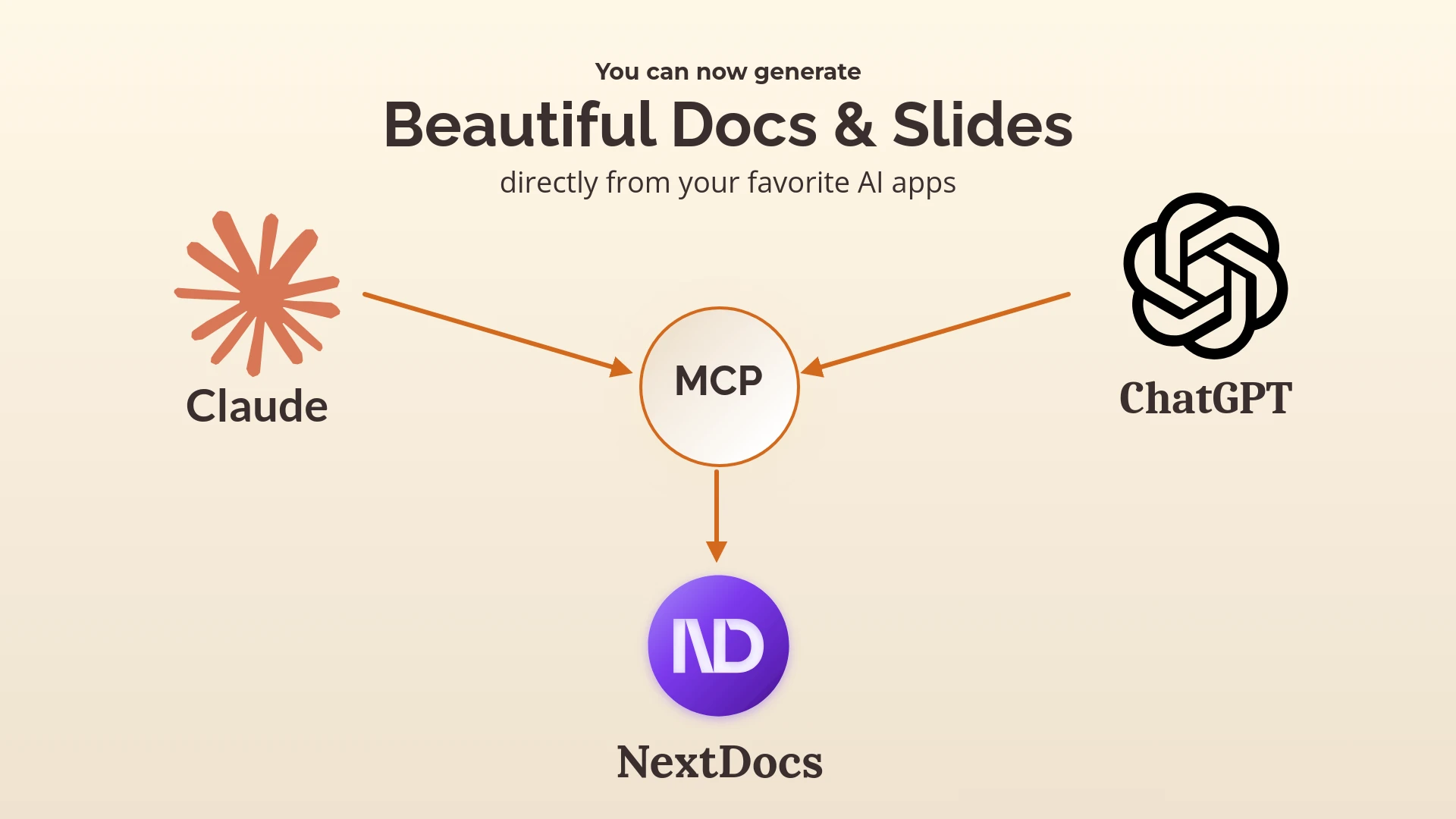
We're excited to announce that NextDocs is now available as an MCP (Model Context Protocol) server — meaning you can create professional presentations and documents directly from Claude and ChatGPT.
No more copy-pasting between apps. No more switching contexts. Just describe what you need, and NextDocs builds it for you.
What is MCP?
MCP (Model Context Protocol) is an open standard that lets AI assistants like Claude and ChatGPT connect to external tools and services. Think of it as giving your AI the ability to actually do things — not just talk about them.
With NextDocs MCP, your AI assistant can:
- Create multi-page presentations
- Generate professional documents
- Apply beautiful, AI-generated themes
- Produce multiple design variants to choose from
How to Connect NextDocs to Claude
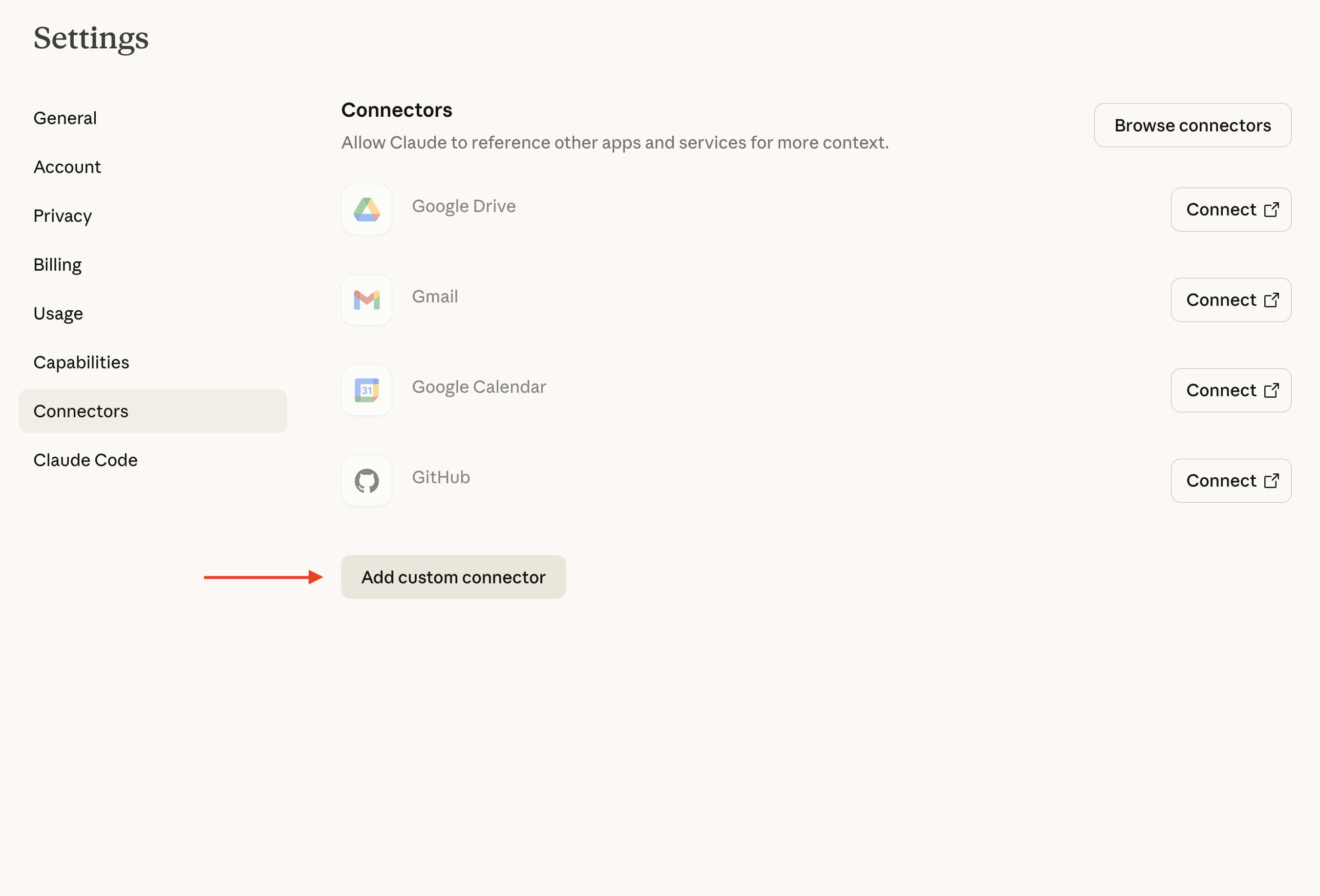
Step 1: Open Claude Settings
In Claude (desktop or web), go to Settings → Connectors and click Add Custom Connector.
Step 2: Add the NextDocs Server
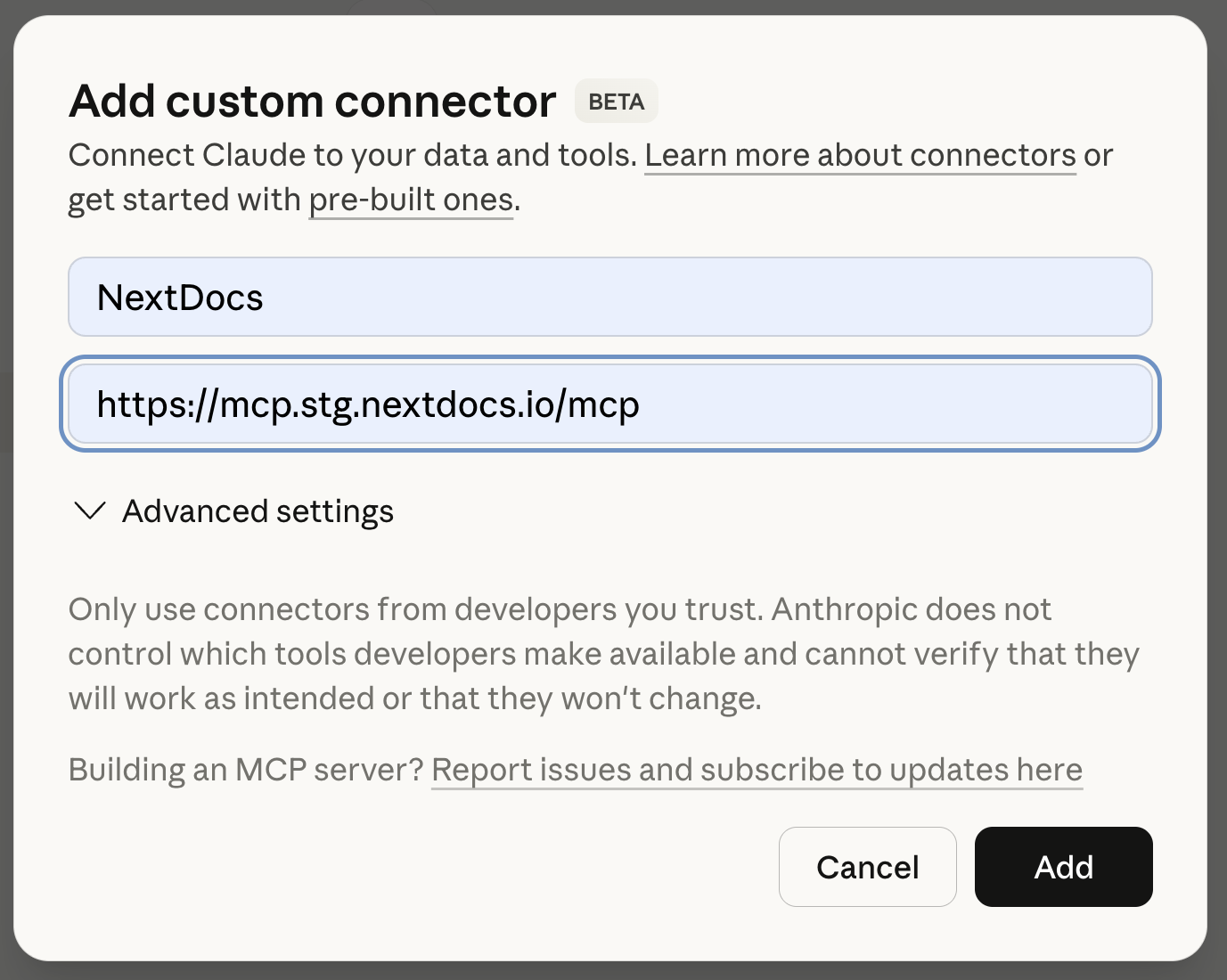
Enter the following details:
- Server URL:
https://mcp.nextdocs.io/mcp - Name: NextDocs (or whatever you prefer)
Step 3: Connect
Claude will handle the OAuth authentication automatically — you'll be redirected to sign in to your NextDocs account.
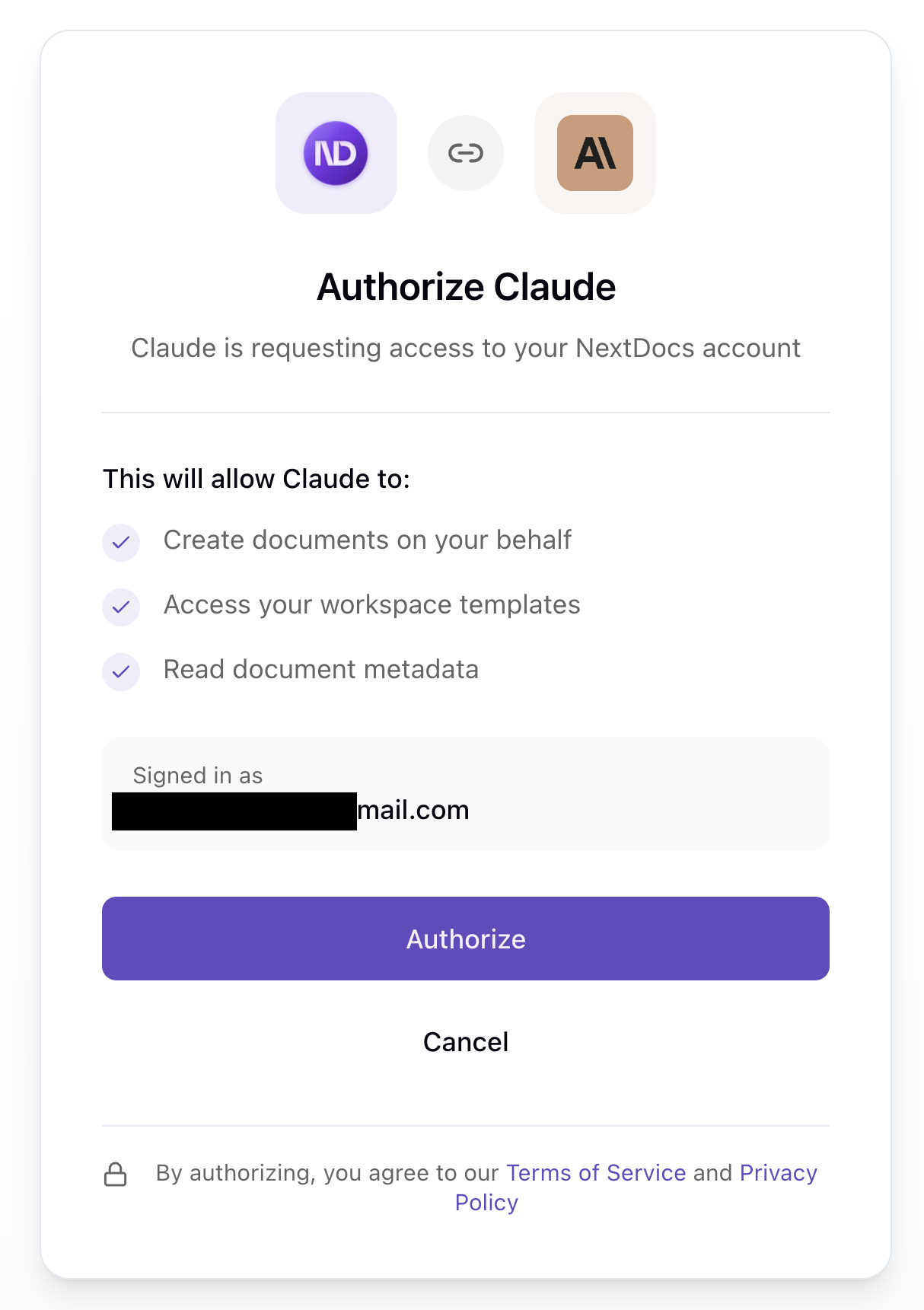
Step 4: Start Creating
Once connected, you can ask Claude to create presentations and documents. NextDocs will appear as an available tool.
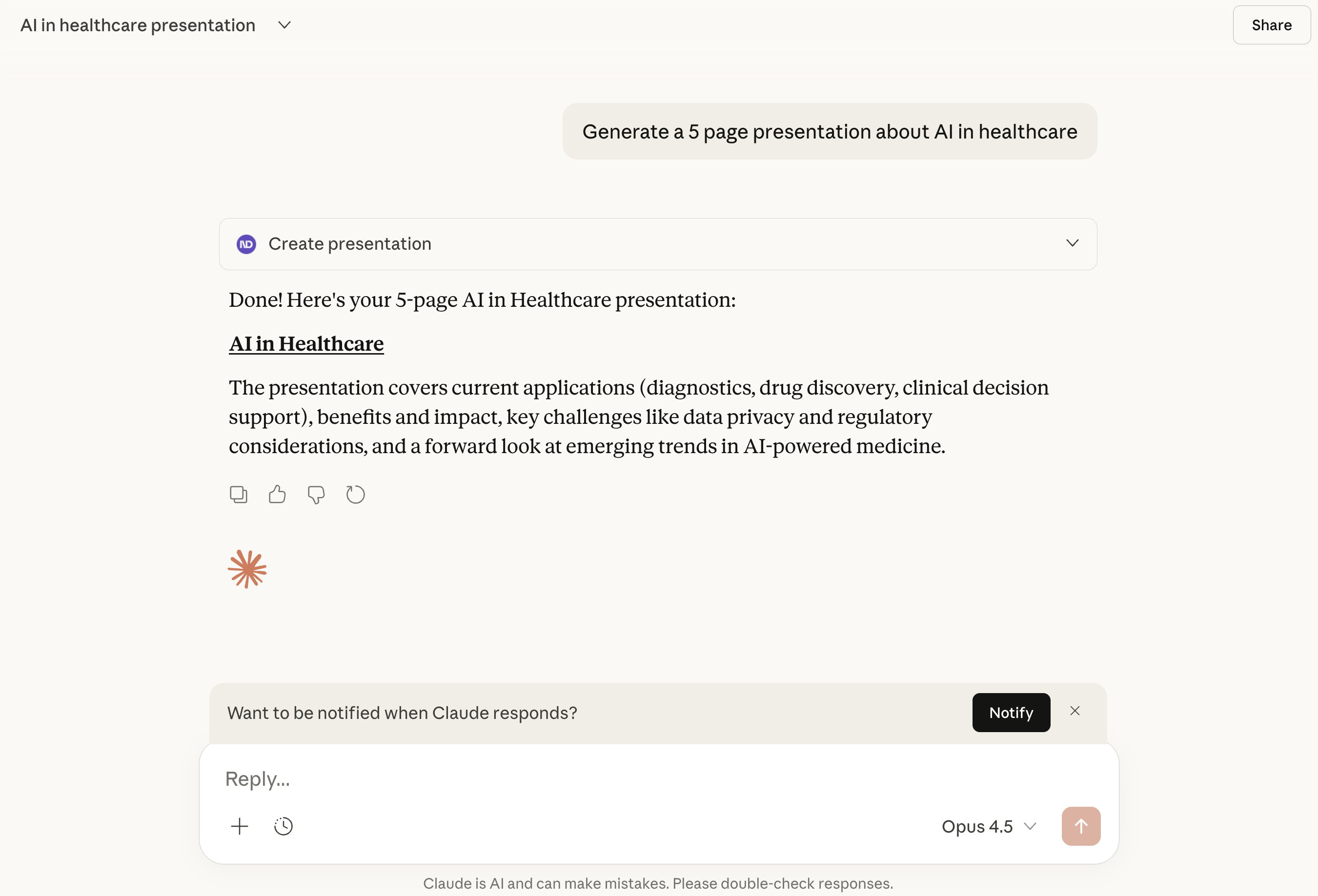
How to Connect NextDocs to ChatGPT
NextDocs is also available for ChatGPT through the Apps SDK. The connection process is similar:
- Find NextDocs in the ChatGPT Apps Directory (or use the direct link)
- Click Connect
- Authorize with your NextDocs account
- Start creating
Available Tools
NextDocs MCP provides three tools:
1. create_presentation
Creates a canvas-based presentation with multiple slides.
2. create_document
Creates a document — either a canvas-based document or a pageless document.
3. hello
A simple connectivity test that returns a greeting. Useful for verifying your connection is working.
Key Features Explained
Multi-Variant Generation (num_copies)
This is one of NextDocs' most powerful features. Instead of generating a single design, NextDocs creates multiple variants of your document simultaneously.
- Default: 2 variants
- Range: 1 to 4 variants
- Why it matters: Each variant has different structure, visual direction, and storytelling approach. You compare them side-by-side and pick your favorite.
When your document is ready, you'll see a selection interface where you can browse through each variant, compare themes, and choose the one that resonates.
AI-Generated Themes (theme_mode)
When theme_mode is set to "auto" (the default), NextDocs analyzes your prompt and generates custom color themes that match your content.
For a presentation about "Ocean Conservation," you might get themes like:
- Deep Sea Blue with coral accents
- Aquatic Teal with sandy neutrals
- Marine Green with wave-inspired gradients
Each variant can have a different theme applied, giving you even more options to choose from.
Fast vs Quality Models (model)
"fast"(default): Uses optimized models for quick generation. Best for most use cases — typically completes in under a minute."quality": Uses more powerful models for complex content. Takes longer but can produce more nuanced results for detailed topics.
Canvas vs Pageless Documents
Canvas documents (default) are page-based with fixed dimensions — perfect for presentations, reports, and anything you'll export to PDF or present on screen.
Pageless documents (pageless: true) are continuous, flowing documents without page breaks — ideal for long-form content, articles, or documents that will primarily be read on screen.
Example Prompts
Here are some examples to get you started:
Example 1: Sales Presentation
"Create a 10-slide sales presentation for a B2B SaaS product called 'DataFlow' that helps companies automate their data pipelines. Include slides for: problem statement, solution overview, key features, pricing tiers, customer testimonials placeholder, and a call to action. Make it professional and modern."
What happens:
- NextDocs generates 2 presentation variants (default)
- Each has 10 slides with the requested structure
- AI-generated themes match the tech/data theme
- You receive a link to view and select your preferred variant
Example 2: Project Proposal Document
"Create a project proposal document for renovating a historic downtown building into a mixed-use development. Include sections for executive summary, project scope, timeline, budget overview, and risk assessment. Make it formal and professional."
What happens:
- A multi-page canvas document is created
- Professional layout with clear section headers
- Multiple variants with different visual approaches
- Ready to export as PDF
Example 3: Quick Pageless Document
"Create a pageless document outlining the benefits of remote work for a company internal memo. Keep it concise — about 3-4 main points with brief explanations."
Parameters to use:
title: "Benefits of Remote Work"
prompt: [your prompt above]
pageless: true
num_copies: 1
What happens:
- A single, continuous document is created
- No page breaks — flows naturally
- Perfect for internal sharing or web viewing
Example 4: High-Quality Detailed Presentation
"Create a comprehensive 15-slide presentation about the history and future of renewable energy. Cover solar, wind, hydro, and emerging technologies. Include data visualization placeholders and a timeline of major milestones. This is for an academic conference."
Parameters to use:
title: "Renewable Energy: Past, Present, and Future"
prompt: [your prompt above]
num_pages: 15
num_copies: 3
model: "quality"
What happens:
- Quality model used for more nuanced content
- 3 variants generated for comparison
- 15 slides each with detailed content
- Academic-appropriate styling
What You Get Back
When NextDocs creates your document, you'll receive:
- A direct link to view and edit your document in NextDocs
- Document details including title, type, and page count
- Variant selection — if you generated multiple copies, you can compare and choose
The document is saved to your NextDocs account and you can:
- Continue editing with AI assistance
- Apply different themes
- Export to PDF, PowerPoint, or images
- Share with collaborators
Tips for Best Results
Be Specific in Your Prompts
The more detail you provide, the better your results:
❌ "Make a presentation about marketing"
✅ "Create an 8-slide presentation about digital marketing strategies for small e-commerce businesses. Include slides on SEO, social media, email marketing, and paid advertising. Use a modern, clean style with plenty of white space."
Use the Right Number of Variants
- 1 variant: When you know exactly what you want and just need execution
- 2 variants (default): Good balance of options without overwhelming choice
- 3-4 variants: When exploring creative directions or presenting options to stakeholders
Choose Fast vs Quality Wisely
- Use fast for: Quick iterations, simple content, time-sensitive work
- Use quality for: Complex topics, important presentations, detailed documents
Privacy and Security
- NextDocs uses OAuth 2.0 for secure authentication
- Your documents are stored in your NextDocs account
- We don't store your conversation history from Claude or ChatGPT
- You can disconnect at any time from your AI assistant's settings
Get Started
Ready to create your first presentation from Claude or ChatGPT?
- Connect NextDocs using the server URL:
https://mcp.nextdocs.io/mcp - Ask your AI to create a presentation or document
- Review and select from the generated variants
- Edit and export in NextDocs
If you don't have a NextDocs account yet, you'll be prompted to create one during the OAuth flow.
Support
Having trouble connecting or creating documents?
- Email: support@nextdocs.io
- Help Center: nextdocs.io/contact-us
We're here to help you get the most out of NextDocs MCP.
Related posts
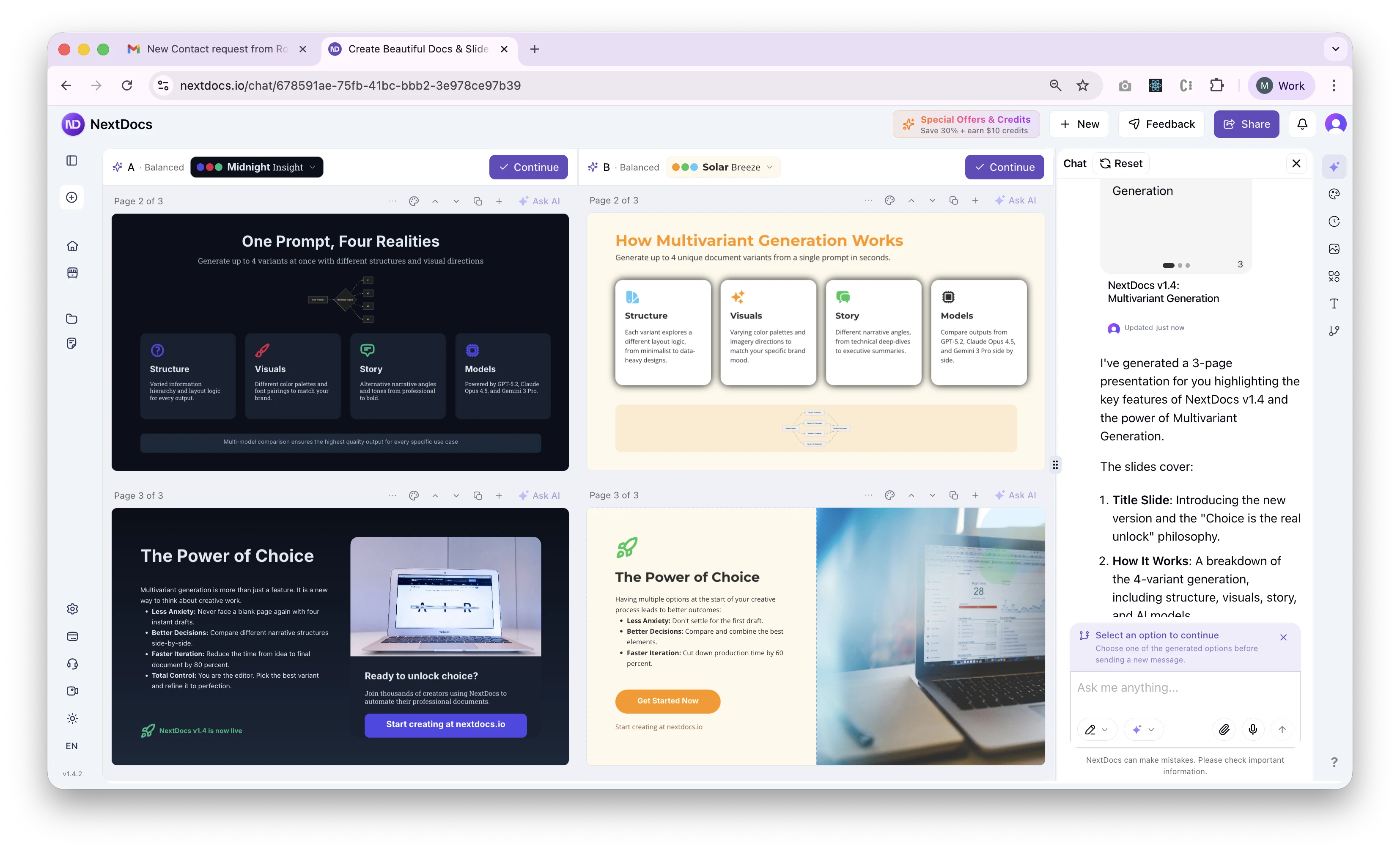
Introducing Multivariant Generation — NextDocs v1.4
Generate up to 4 document variants simultaneously. Compare different structures, visual directions, and stories side by side. Layer themes on top. Pick your favorite. This changes everything about how you create.
Read more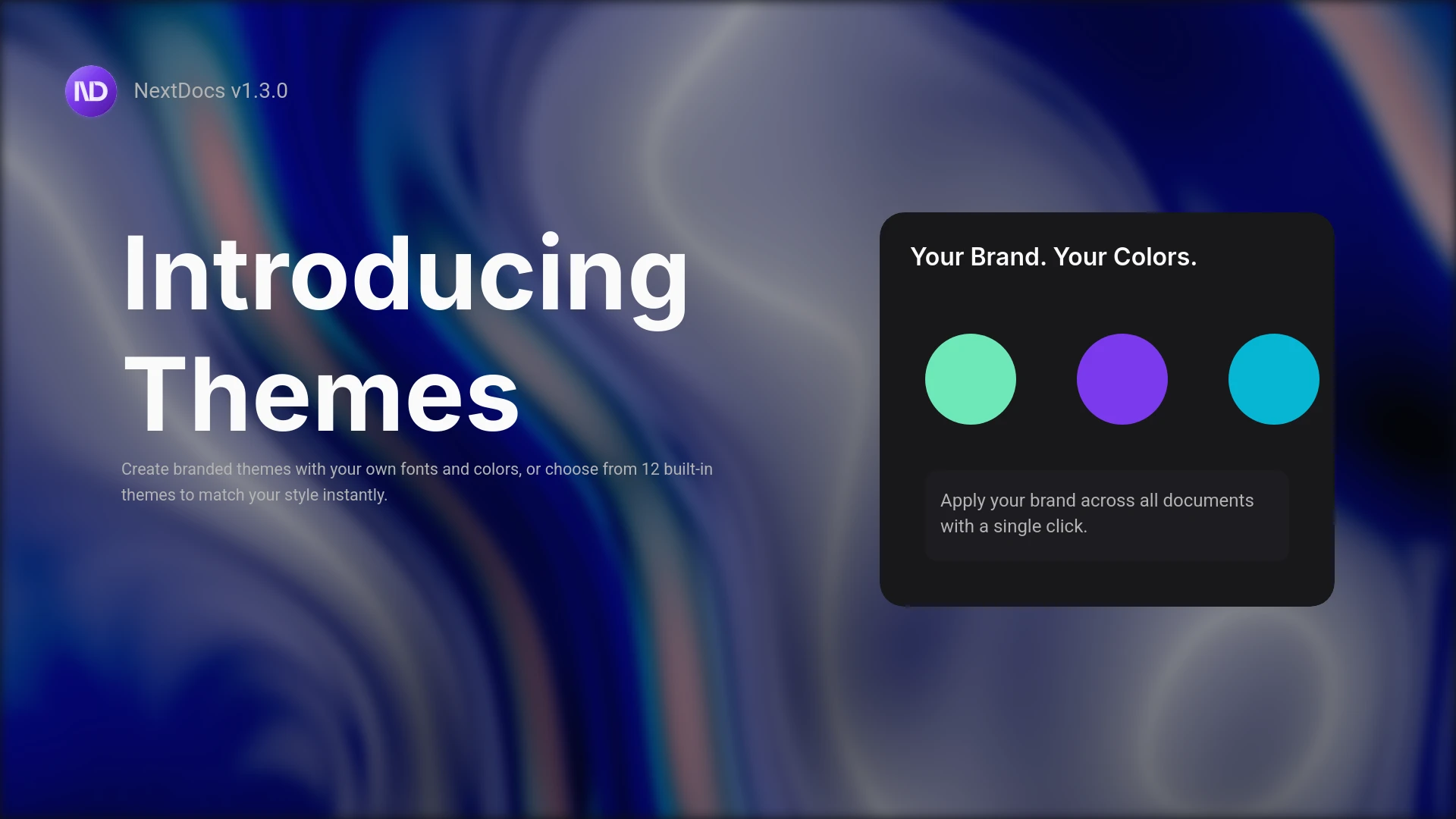
Introducing Themes and the Pageless Document Editor
Create branded documents with custom themes. Define your fonts, colors, and style. Plus a new pageless editor for flowing documents like reports and proposals. Professional results, your brand identity.
Read more