

Introducing Themes and the Pageless Document Editor
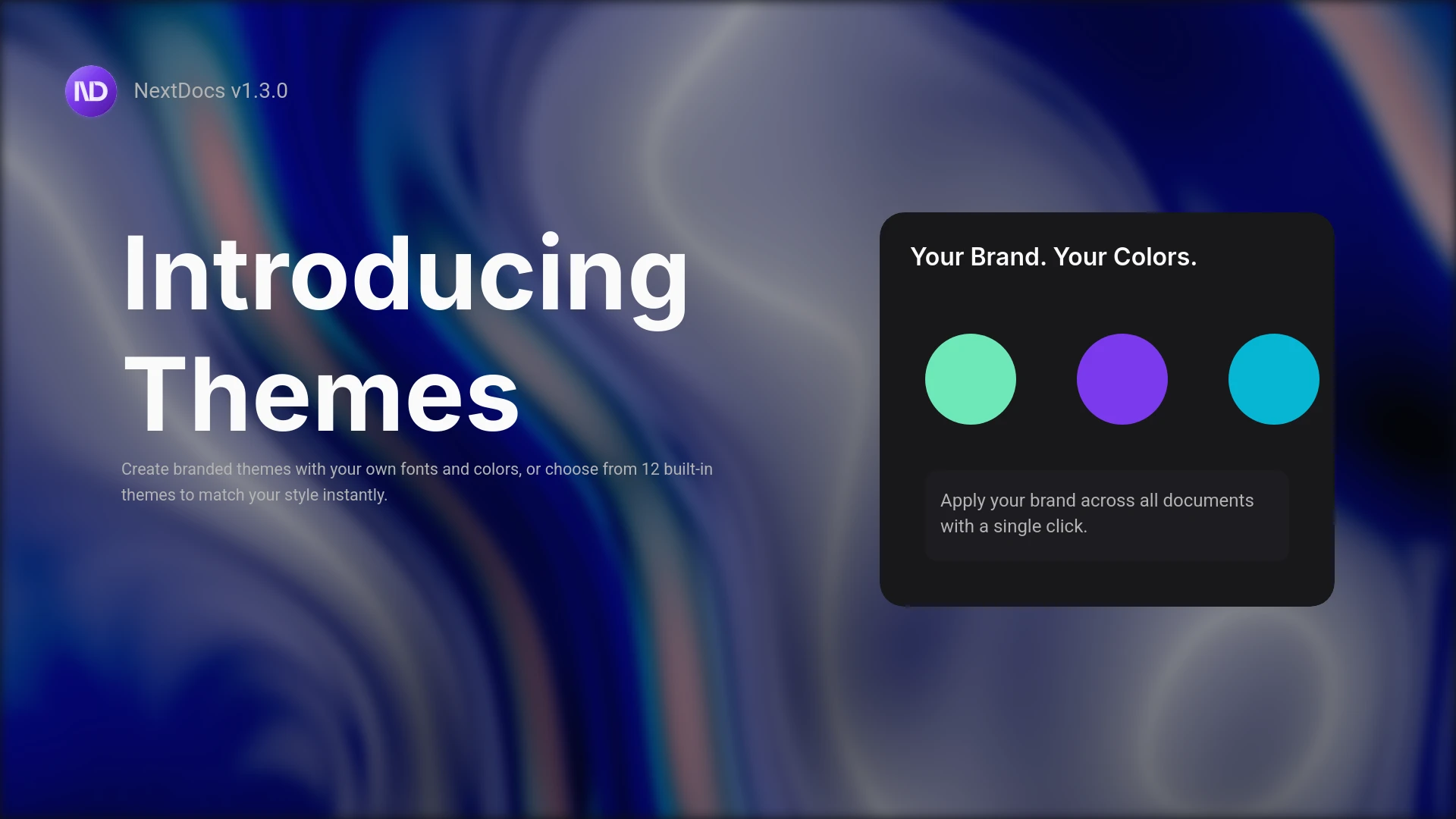
Today we're launching NextDocs v1.3 — a release focused on brand consistency and document flexibility. We've built a complete theme system for creating branded documents, plus a new pageless editor for flowing content like reports, proposals, and articles.
Your documents. Your brand. Your way.
🎨 Themes — Brand Consistency Made Simple
Every organization has a brand identity. Colors that represent you. Fonts that convey your personality. Now NextDocs lets you capture that identity in reusable themes.
Why themes matter:
- Consistency — Every document looks like it came from your organization
- Speed — Stop manually setting colors and fonts for each project
- Professionalism — Pre-defined palettes ensure visual harmony
- Flexibility — Switch the entire look of a document in one click
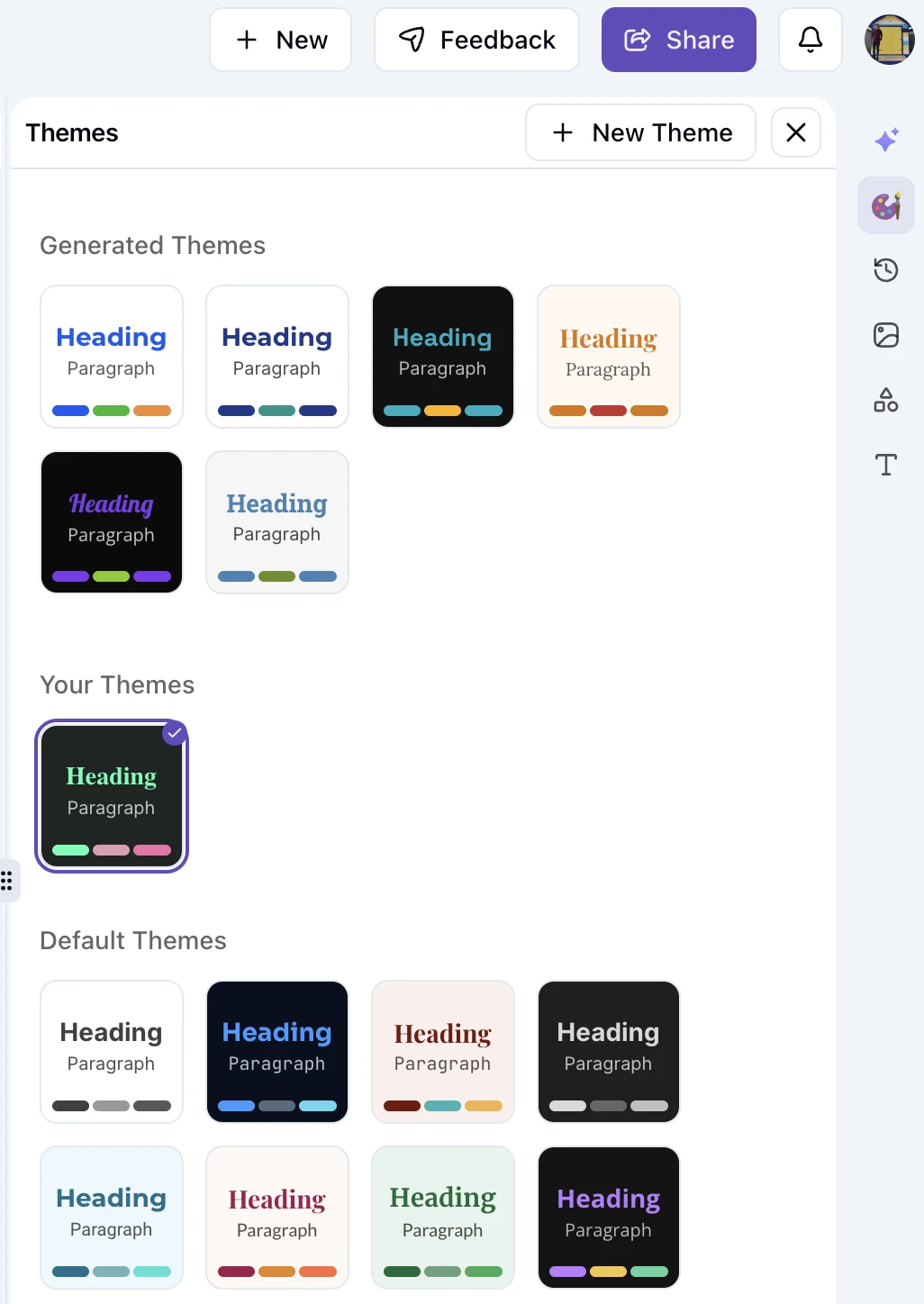
12 Built-in Themes — Ready to Use
We've designed 12 professional themes covering a wide range of styles and use cases. Each theme has been carefully crafted with harmonious color palettes and complementary font pairings.
| Theme | Best For |
|---|---|
| Academic Ivory | Professional documents, business reports, formal presentations |
| Midnight Blue | Tech presentations, product demos, modern corporate |
| Terracotta Professional | Creative agencies, design portfolios, warm branding |
| Dark Minimal | Developer docs, tech startups, sleek modern |
| Ocean Breeze | Healthcare, wellness, fresh and approachable |
| Sunset Glow | Marketing materials, event invitations, warm and vibrant |
| Forest Twilight | Environmental, sustainability, calm and natural |
| Soft Black | Premium brands, luxury products, sophisticated |
| Rose Gold | Beauty, fashion, elegant and refined |
| Lavender Dream | Creative projects, artistic presentations |
| Cool Slate | Enterprise, consulting, professional and neutral |
| Paper White | Classic documents, traditional styling, timeless |
One click to apply. Your entire document transforms instantly.
Create Your Own Themes — Define Your Brand
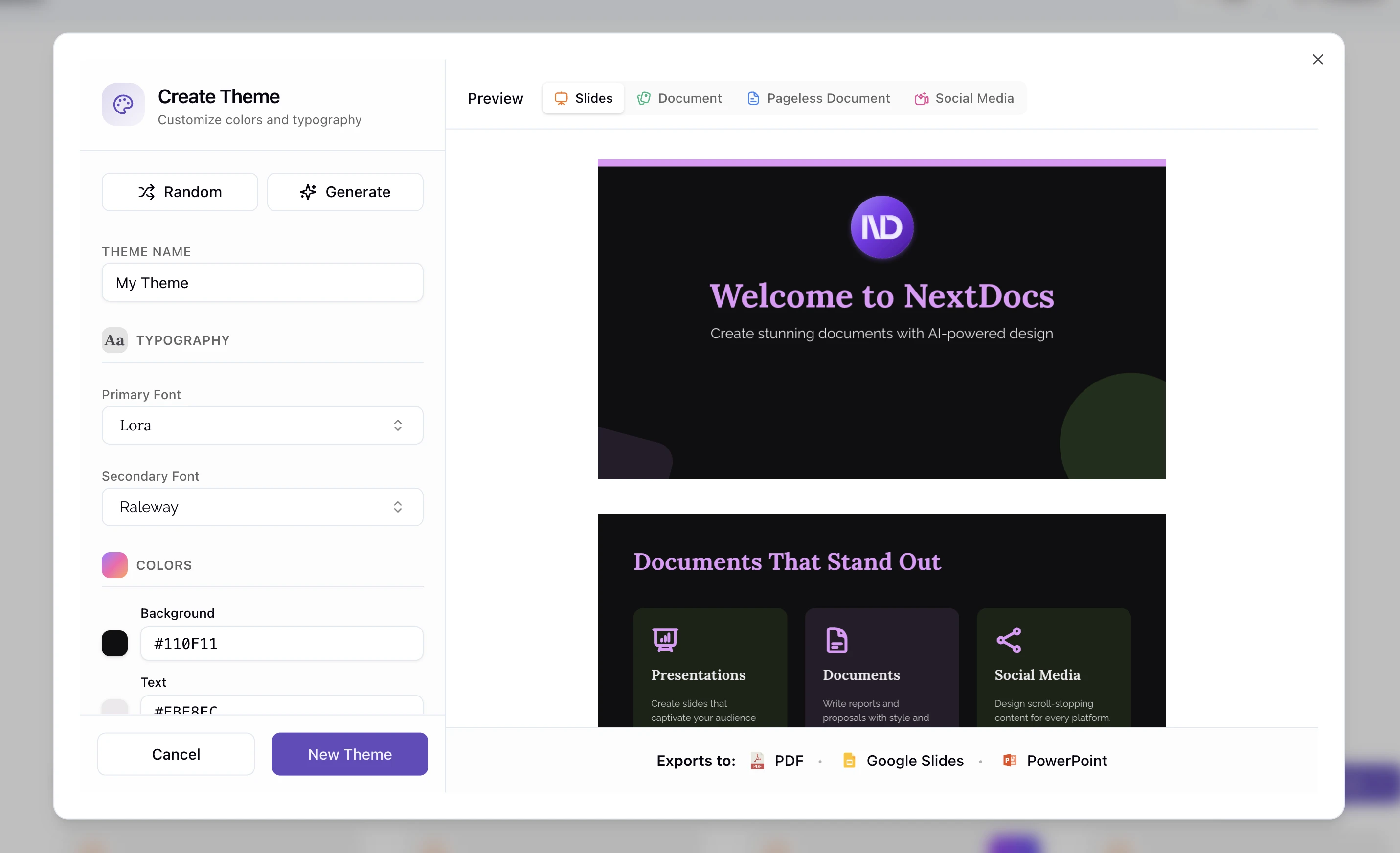
Built-in themes are great for getting started, but your brand is unique. Create custom themes that capture exactly who you are.
Fonts — Your Typographic Voice
Every theme defines two font families:
Primary Font Your headline font. Used for:
- Document titles
- Section headings
- Key callouts
- Anything that needs to stand out
Choose fonts that convey your brand personality. A tech company might use clean, geometric sans-serifs. A law firm might prefer elegant serifs. A creative agency might go bold and expressive.
Secondary Font Your body font. Used for:
- Paragraphs and body text
- Lists and bullet points
- Captions and descriptions
- Everything readers spend time reading
This should be highly readable at small sizes. Prioritize clarity over style for body text — your readers will thank you.
50+ Google Fonts available. We've curated a collection of professional fonts that work beautifully in documents. All fonts load automatically and export perfectly to PDF and Google Slides.
Colors — Your Visual Identity
Themes use a structured color system that ensures visual harmony while giving you complete control.
Core Colors (Required)
Every theme needs these four colors:
Background The canvas your content sits on. Usually white or very light for documents, but dark themes work beautifully for presentations.
Supports:
- Solid colors (hex values)
- Linear gradients (top-to-bottom, angled)
- Radial gradients (center outward)
Foreground Your main text color. Should have strong contrast against the background for readability. Typically black, dark gray, or off-white for dark themes.
Primary Your brand's main color. The hero of your palette. Used for:
- Main headings
- Key accent elements
- Important highlights
- Interactive elements
This is often your logo color or primary brand color.
Secondary A supporting accent that complements your primary. Used for:
- Subheadings
- Secondary highlights
- Supporting visual elements
- Hover states
Choose a color that pairs well with your primary — either a complementary color for contrast or an analogous color for harmony.
Extended Colors (Optional)
For more precise control, you can define additional colors. If you don't specify these, NextDocs automatically derives them from your core colors.
Tertiary A third accent for additional variety. Useful for:
- Charts and data visualization
- Tagging and categorization
- Multi-colored highlights
If not set: Derived by rotating your primary color's hue by 60 degrees.
Accent For interactive elements and links. Draws attention without overwhelming.
If not set: Defaults to your primary color.
Muted Subtle background tints for:
- Sidebar backgrounds
- Callout boxes
- Section separators
- Subtle emphasis
If not set: Derived from your background (12% lighter or darker depending on theme brightness).
Muted Foreground Text color for secondary information:
- Captions and metadata
- Timestamps
- Helper text
- Less important labels
If not set: A 40% blend between your foreground and background.
Card Background color for content cards and blocks:
- Info boxes
- Feature callouts
- Grouped content sections
If not set: Derived from your background (15% lighter or darker).
Border For dividers, outlines, and separators:
- Section dividers
- Table borders
- Card outlines
If not set: Derived from your background with reduced saturation.
Shadow Color for drop shadows and depth effects.
If not set: Semi-transparent black or white depending on theme brightness.
The Smart Part — Automatic Color Derivation
Here's what makes this system powerful: you don't have to define every color.
Specify your four core colors, and NextDocs intelligently derives the rest. The derivation logic is brightness-aware:
- Light themes (light backgrounds): Derived colors are slightly darker
- Dark themes (dark backgrounds): Derived colors are slightly lighter
This means your cards, borders, and muted backgrounds always have appropriate contrast — automatically.
Want more control? Override any derived color with your exact value. Your specifications always take priority.
AI Theme Generation — Describe Your Brand
Not sure where to start? Let AI help.
Type a description of your desired style:
"Modern tech startup, clean and minimal with blue accents"
"Warm and inviting, like a coffee shop, with earthy browns and creams"
"Bold and energetic, bright colors, youthful and dynamic"
"Professional law firm, traditional and trustworthy, navy and gold"
NextDocs AI will:
- Select appropriate fonts from our curated collection
- Generate a harmonious color palette matching your description
- Create a complete theme ready to use
Iterate quickly. Don't like the result? Regenerate or tweak individual values.
Themes Everywhere — Canvas and Pageless
Your themes work across both document types:
Canvas Documents (Presentations, Posters, Flyers)
Themes integrate with the visual editor:
- Shape fills respect theme colors
- Text uses theme fonts
- Background colors apply to slides
- Export to Google Slides preserves your theme
Pageless Documents (Reports, Proposals, Articles)
Themes style your flowing content:
- Headings use primary font and primary color
- Body text uses secondary font and foreground color
- Code blocks and tables respect theme colors
- Export to PDF preserves your styling
📝 Pageless Editor — Documents Without Boundaries
Not everything needs page breaks.
The new Pageless Editor is a continuous document format for flowing content. Think Google Docs or Notion, but with NextDocs' AI-powered creation.
When to Use Pageless
Perfect for:
- Business reports and analysis
- Project proposals
- Technical documentation
- Meeting notes and agendas
- Blog posts and articles
- Research summaries
- Internal memos
Stick with Canvas for:
- Presentations with slides
- Marketing materials with precise layouts
- Posters and flyers
- Visual-heavy documents
What Makes Pageless Special
No Page Breaks Content flows naturally. No awkward breaks in the middle of sections. Write as much as you need without layout constraints.
Full Theme Support Apply any built-in or custom theme. Your fonts, colors, and styling apply throughout the document.
AI-Powered Writing Use chat to generate and edit content:
- "Write an executive summary"
- "Expand this section with more detail"
- "Make this more concise"
- "Add a conclusion"
AI understands the continuous format and generates appropriate flowing content.
Rich Formatting Everything you need for professional documents:
- Headings (H1 through H6)
- Bold, italic, underline, strikethrough
- Bullet lists and numbered lists
- Tables with formatting
- Code blocks with syntax highlighting
- Images and media
- Block quotes
- Horizontal dividers
Real-Time Saving Never lose work. Documents auto-save as you edit, with visible save status so you always know your work is safe.
Version History Track changes over time. See what AI generated, what you edited, and restore previous versions if needed.
Export Options
Take your pageless documents anywhere:
PDF Export Professional output with proper styling:
- Theme colors and fonts preserved
- Clean pagination for printing
- High-quality rendering
HTML Export Web-ready format:
- Centered, readable layout
- Responsive styling
- Clean markup
Google Docs Continue editing in Google's ecosystem:
- Formatting preserved
- Easy collaboration
- Familiar interface
🖼️ Image Filters — Professional Photo Editing
Apply professional-grade filters to any image in your canvas documents.
Available Filters
Blur Soften images for background effects or focus emphasis. Adjustable intensity from subtle softening to heavy blur.
Brightness Control the overall lightness of images. Brighten dark photos or tone down overexposed shots.
Contrast Adjust the difference between light and dark areas. Higher contrast for punch, lower for a softer look.
Grayscale Convert to black and white. Perfect for creating cohesive visual styles or highlighting color elements.
Invert Reverse all colors for creative effects. Useful for creating negatives or artistic treatments.
Sepia Apply warm, vintage toning. Great for nostalgic or historical aesthetics.
How to Use
- Select any image in your canvas document
- Open the filter panel from the image toolbar
- Choose your filter and adjust intensity with the slider
- Preview changes in real-time
Exports Correctly
Filters are preserved when you export:
- PDF exports show filtered images correctly
- Google Slides exports maintain filter effects
- No quality loss in the export process
🐛 Bug Fixes and Improvements
This release includes numerous stability and performance improvements:
- Fixed Google Slides theme export issues
- Fixed toolbar loading and stability problems
- Improved color picker behavior
- Fixed document theme selection issues
- Enhanced editor performance
- Various reliability improvements throughout the app
Getting Started with v1.3
Try a Built-in Theme
- Create a new document (canvas or pageless)
- Click the theme selector in the footer
- Browse the 12 built-in themes
- Click to apply — instant transformation
Create Your First Custom Theme
- Open the theme selector
- Click "Create Theme"
- Define your fonts and core colors
- (Optional) Set extended colors for precise control
- Save and apply to any document
Try the Pageless Editor
- Click "New Document"
- Select "Pageless" as the document type
- Choose a theme
- Start writing or ask AI to generate content
What's Next
We're continuing to expand the theme system:
- More built-in themes based on user feedback
- Theme sharing within organizations
- Template themes for specific industries
- Enhanced gradient and pattern backgrounds
For the pageless editor:
- Collaborative editing
- Comments and suggestions
- Table of contents generation
- Advanced export options
Release Highlights
Themes
- 12 professionally designed built-in themes
- Custom theme creation with fonts and colors
- AI theme generation from text descriptions
- Theme management (edit, duplicate, delete)
- AI instructions per theme
- Works across canvas and pageless documents
Pageless Editor
- Continuous document format (no page breaks)
- Full theme support
- AI-powered content generation
- Rich formatting and tables
- Real-time saving with version history
- Export to PDF, HTML, and Google Docs
Image Filters
- 6 professional filters (blur, brightness, contrast, grayscale, invert, sepia)
- Adjustable intensity
- Preserved in exports
Bug Fixes
- Improved stability and performance throughout
Ready to create branded documents?
Questions or feedback? We're here: hello@nextdocs.io
Thanks for using NextDocs. Happy creating!
—The NextDocs Team