

Turn a PDF or Word document into a presentation with AI
The most common presentation job is not "make me a deck from nothing". It is "I have this document, make it a deck". A 40-page report that needs a ten-slide summary. A proposal that has to be presented on Thursday. A product spec that engineering wrote and sales has to explain.
There are three routes that work today. They do different things, and the right one depends on whether you want a new deck built from the content or the old pages made editable.
Route one: upload the file as source material
In NextDocs, start a new presentation and attach the file to your prompt. PDF, Word (DOC and DOCX), plain text and Excel files are all accepted as attachments.
Then say what you want: "Turn this into a twelve-slide executive summary for the board. Keep the financial figures exact. One slide per section, and a closing slide with the three recommendations."
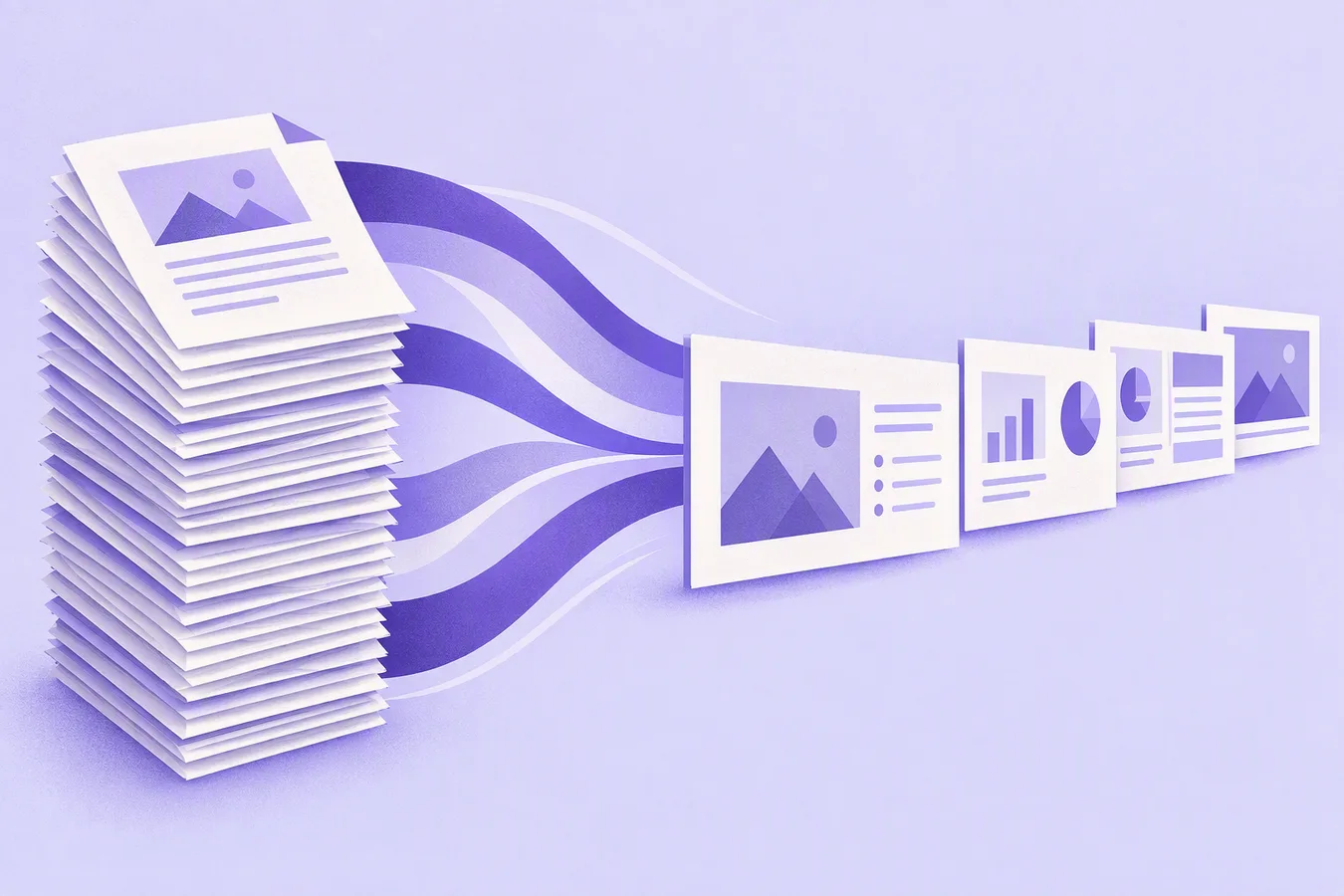
What happens next is worth understanding: NextDocs reads the document and builds a new presentation from it. It is not converting pages one to one. That is the point. A 40-page report does not become 40 slides; it becomes the deck the report needed.
Three things make this route better than pasting text into a chat window:
- Several versions at once. NextDocs generates two to four complete decks from the same brief, optionally with a different model each, and you keep the best one. When the source is long, the versions can differ a lot in what they choose to emphasise.
- Your brand, applied. If a brand kit is set, the deck comes out in your colours, fonts and tone.
- Real exports. The result goes out as PPTX, Google Slides, PDF or PNG, so it lands in whatever the meeting uses.
For a very long or very technical source, add deep research to the prompt and the AI will verify claims against the web and cite them.
Route two: import an existing deck
If what you have is already a presentation, a PPTX from last year or a Google Slides deck a colleague made, import it instead. NextDocs brings the slides in as editable slides, and from there you can ask the AI to restyle, shorten, translate or update them, or edit by hand.
This is the route for "make it look like ours" rather than "summarise it".
Route three: drop the file on a canvas
Shyne, our sister product, does something different again. Drop a PDF, a PPTX, images or video onto the canvas and every page lands as an editable frame, not an embed. The original pages become the starting point; the agent, and anyone else in the file, can then rewrite, restyle and rearrange them while you watch.
It suits the case where the document is the work in progress rather than the finished input: a team iterating on a pitch, or a deck that also needs a video version.
Which route to pick
| You have | You want | Use |
|---|---|---|
| A report, brief or spec | A new deck that summarises it | NextDocs, attach the file |
| An old PPTX or Google Slides deck | The same slides, editable and restyled | NextDocs, import |
| Any file | The pages on a canvas, with a team and an agent editing live | Shyne |
Where the built-in AIs fit
Google's Gemini can now generate a native deck inside Google Slides from Drive content, and Microsoft Copilot's Agent Mode can build slides from a Word file inside PowerPoint. If your source and your audience both live inside one of those suites, they are convenient. What they do not give you is model choice, several versions to compare, or a file that exports cleanly to the other suite. That is the gap the tools above fill.
A worked example
Take a quarterly report as a PDF. Attach it in NextDocs with the prompt: "Ten slides for the leadership meeting. Lead with the three numbers that changed most versus last quarter, one slide each with the chart data as a table, then risks, then asks. Formal tone, no jokes." Generate three versions. Pick the one whose choice of three numbers you agree with. Export to PPTX for the meeting and to PDF for the pre-read.
Twenty minutes, most of it reading.
Make a deck from a document in NextDocs · Drop a file on the Shyne canvas
The NextDocs Team